The three shortcuts you'll use every day
All Mac screenshot shortcuts start with ⇧ ⌘ (Shift and Command). They work the same on a MacBook Air, a MacBook Pro or a desktop Mac, on any recent version of macOS.
The whole screen: ⇧ ⌘ 3
Captures everything on screen, instantly. If you have more than one display, you get one file per display.
An area: ⇧ ⌘ 4
The pointer becomes a crosshair. Click and drag over the part you want, then let go. While you drag, hold the Space bar to move the whole selection instead of resizing it. Press ⎋ Esc to cancel.
One window: ⇧ ⌘ 4, then Space
Press ⇧ ⌘ 4, then tap the Space bar. The crosshair turns into a camera and whatever window is under it turns blue. Click to capture it. The result includes the window's shadow on a transparent background; hold ⌥ Option while you click if you want the window alone, without the shadow. This also works for the menu bar, the Dock and open menus.
Want it on the clipboard instead of the Desktop? Add ⌃ Control to any shortcut. ⌃ ⇧ ⌘ 4 copies an area, ⌃ ⇧ ⌘ 3 copies the whole screen. No file is saved; paste with ⌘ V into Slack, Mail or a document. If you're coming from Windows, this is the closest thing to how the Snipping Tool behaves.
The toolbar with all the options: ⇧ ⌘ 5
⇧ ⌘ 5 opens a small bar at the bottom of the screen. The first three buttons capture the entire screen, a selected window or a selected portion; the buttons after them record video instead (see how to screen record on a Mac). The same toolbar opens from the Screenshot app in Applications → Utilities.
The Options menu is where the settings live:
- Save to — Desktop, Documents, Clipboard, Mail, Messages, Preview or any other folder. Whatever you pick here also applies to the keyboard shortcuts.
- Timer — none, 5 or 10 seconds. Useful for capturing a menu or a hover state that disappears when you press keys.
- Show Floating Thumbnail — the preview that appears in the corner after each capture. Turn it off if you take many screenshots in a row: the file is then written immediately instead of a few seconds later.
- Remember Last Selection — reuses the area you selected last time.
- Show Mouse Pointer — includes the cursor in the screenshot.
- On recent versions of macOS there are a few more, such as HDR capture on displays that support it.
The Touch Bar: ⇧ ⌘ 6
On MacBook Pro models with a Touch Bar, ⇧ ⌘ 6 captures what the Touch Bar is showing. On any other Mac it does nothing.
Where screenshots are saved, and in what format
By default, screenshots land on your Desktop as PNG files named “Screenshot” followed by the date and time. After a few weeks that turns into a Desktop full of files, which is why most people change the location: ⇧ ⌘ 5 → Options → Save to → Other Location…, and pick a folder such as Pictures/Screenshots. If a screenshot isn't where you expect, see where do screenshots go on a Mac; if the shortcuts do nothing at all, see Mac screenshot not working.
PNG is lossless, which keeps text crisp, but a full Retina screen can weigh several megabytes. If you'd rather have smaller JPG files, there's no setting in the interface, but there is one in Terminal. Open it (Applications → Utilities) and run these two commands, one after the other:
defaults write com.apple.screencapture type jpgkillall SystemUIServer
The first changes the format; the second restarts the process that takes screenshots so the change applies right away. Other values that work are pdf and tiff. To go back to the default, run it again with png.
Editing a screenshot with Markup
When the floating thumbnail appears in the corner, you have a few seconds to act on it:
- Click it to open it in Markup: draw, add shapes and arrows, type text, add a signature, crop and rotate. Click Done to save the changes.
- Swipe it to the right (or ignore it) to save it right away.
- Drag it straight into an email, a chat, a document or a Finder folder.
- Control-click it for more choices, such as saving to a different place or deleting it.
If the thumbnail is gone, open the file in Preview and click the Markup button (the pen tip) in the toolbar: it's the same set of tools. What Markup does well and where it falls short is covered in our guide to editing screenshots on a Mac.
When you need more than the built-in tools
For an occasional screenshot, macOS is enough. If you take them all day — for bug reports, documentation, support replies or tutorials — the gaps start to show:
- No scrolling capture. There's no way to capture a whole chat, a long web page or a log that doesn't fit on screen. See how to take a scrolling screenshot on a Mac for the workarounds.
- No blur or pixelate. To hide an email or a card number you can only draw a filled box over it.
- No numbered steps, no stickers, no way to erase an object and rebuild the background behind it.
- No share link. You get a file; getting it to someone else is up to you.
- Copy or save, decided in advance. You have to remember whether to add Control before taking the shot.
Taking screenshots with ShotDock
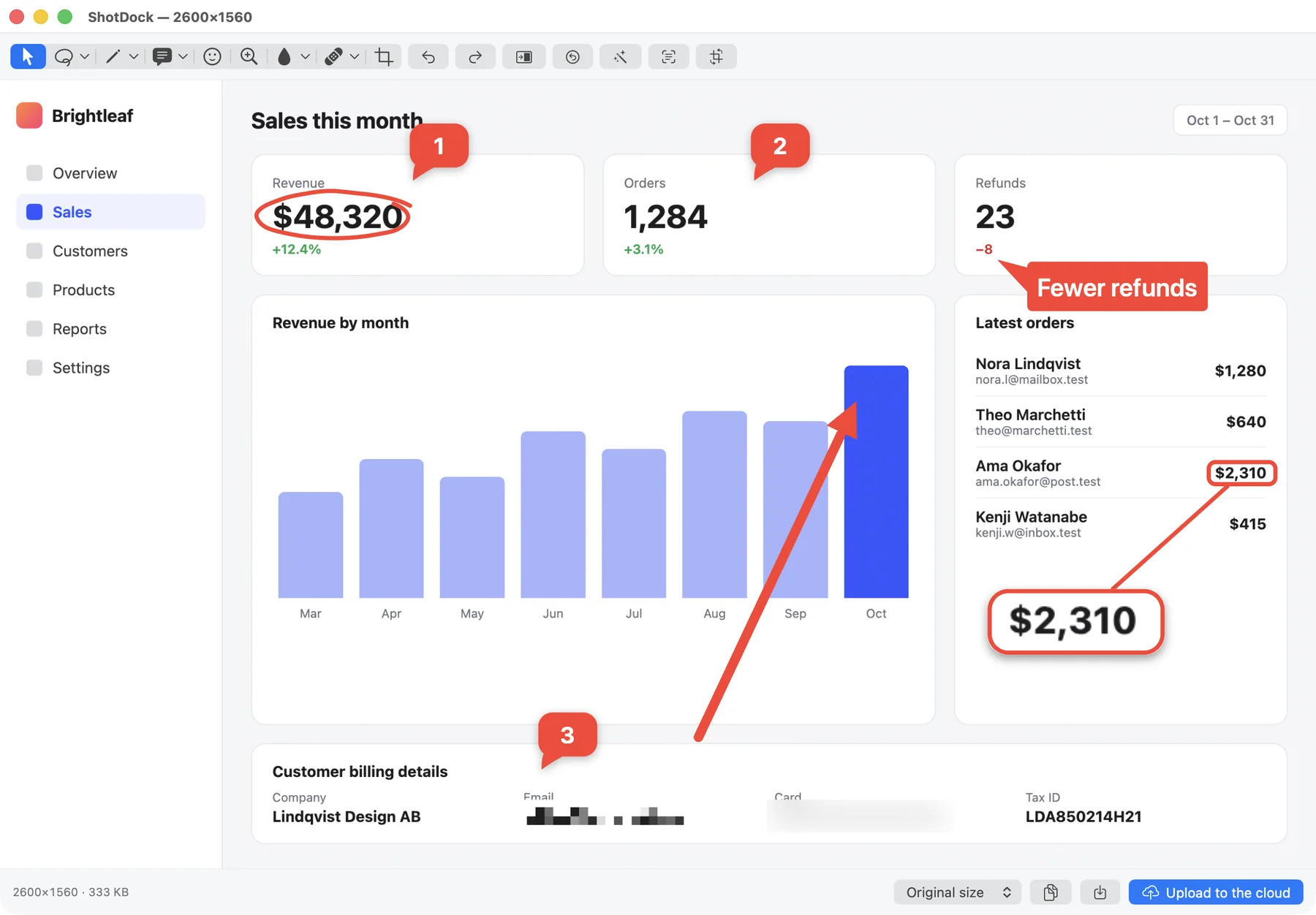
ShotDock uses shortcuts one key away from the ones you already know, so it doesn't fight with macOS:
- Press ⇧ ⌘ 0 for an area, ⇧ ⌘ 9 for a window or ⇧ ⌘ 8 for the whole screen.
- The capture opens in an editor with more than twenty tools, each on a single letter: A arrow, R rectangle, T text callout, S numbered steps, M pixelate, B blur, Z magnifier, and more.
- Decide what to do with it after you've seen it: ⎋ Esc copies it to the clipboard and closes, ↩ saves the file, and ⌘ ↩ uploads it and puts a link on your clipboard.
It also adds the captures macOS doesn't have: scrolling capture with ⇧ ⌘ 7, text recognition (OCR) with ⇧ ⌘ O, and a color picker with ⇧ ⌘ I.
| macOS (⇧⌘3/4/5) | ShotDock | |
|---|---|---|
| Area, window, full screen | Yes | Yes |
| Copy or save | Decided before the shot (add ⌃) | Decided after: Esc, ↩ or ⌘↩ |
| Arrows, shapes, text | Yes, in Markup | Yes, one key per tool |
| Blur and pixelate | No | Yes |
| Numbered steps, magnifier | Magnifier only | Both |
| Scrolling capture | No | Yes, ⇧⌘7 |
| Text from the screen (OCR) | Live Text, in some apps | Anywhere, ⇧⌘O |
| Share link | No | Yes, or your own S3 |
| Price | Free | $12 once, 14-day free trial |
ShotDock needs macOS 14 or later on an Apple Silicon Mac. The trial has every feature and asks for no account; one licence covers up to three of your Macs.
Frequently asked questions
What is the shortcut to screenshot on a Mac?
Shift-Command-3 (⇧⌘3) captures the whole screen, Shift-Command-4 (⇧⌘4) lets you drag over an area, and Shift-Command-4 followed by the Space bar captures one window. Shift-Command-5 (⇧⌘5) opens a toolbar with all the options. They are the same on a MacBook Air, MacBook Pro, iMac or any other Mac.
Where do screenshots go on a Mac?
To the Desktop by default, as PNG files named Screenshot followed by the date and time. To change the folder, press Shift-Command-5, click Options and pick a location under Save to.
How do I screenshot to the clipboard instead of a file?
Add Control to any of the shortcuts: Control-Shift-Command-3 copies the whole screen and Control-Shift-Command-4 copies an area. Nothing is saved to disk; paste it with Command-V wherever you need it.
How do I take a screenshot without the window shadow?
Press Shift-Command-4, then the Space bar, and hold Option while you click the window. You get just the window, with no shadow and no transparent border around it.
How do I change the screenshot format from PNG to JPG?
Open Terminal and run: defaults write com.apple.screencapture type jpg — then run: killall SystemUIServer. New screenshots will be JPG. To go back, run the same command with png instead of jpg.
Try ShotDock free for 14 days
Every feature unlocked, no account. If you keep it, it's $12 once — no subscription.