First, the bad news
None of the built-in screenshot tools on a Mac can capture more than what fits on the screen. ⇧ ⌘ 3, ⇧ ⌘ 4 and the ⇧ ⌘ 5 toolbar (all covered in how to screenshot on a Mac) stop at the edge of the display. iPhone has a “Full Page” option for Safari screenshots; the Mac doesn't.
If what you need is a web page, though, your browser can do it for free.
Full-page screenshot in Firefox
Firefox has the simplest built-in option, and it gives you an image:
- Right-click an empty part of the page and choose Take Screenshot.
- Click Save full page at the top right.
- Choose Download to get a PNG, or Copy to put it on the clipboard.
Full-page screenshot in Chrome
Chrome hides it in the developer tools, but it works on any page:
- Open DevTools with ⌥ ⌘ I (or right-click → Inspect).
- Press ⇧ ⌘ P to open the command menu.
- Type screenshot and choose Capture full size screenshot.
A PNG of the whole page is saved to your Downloads folder. The same trick works in Edge, Brave, Arc and other Chromium browsers.
Full page in Safari: as a PDF
Safari has no full-page image capture, but File → Export as PDF… saves the entire page as a single PDF. It's handy for archiving an article or a receipt, and text stays selectable. The catch is that it's a PDF laid out by Safari, not a picture of what you saw: some elements may shift, and to get an image you have to open it in Preview and export it again.
Where the browser tricks fall short
They all work by asking the browser to render the page at full height in one go. That causes a few problems you'll run into quickly:
- Only web pages. A Slack or WhatsApp conversation, a long email in Mail, a spreadsheet, a settings window, a terminal session or a Figma file are out of reach.
- Only pages where the page itself scrolls. Many web apps — Gmail, chat apps, dashboards, documentation sites with a fixed sidebar — scroll an inner panel, not the page. The capture then comes out as just the visible screen, or with the panel cut off.
- Lazy-loaded images come out blank. Pages that load pictures as you scroll show empty boxes further down. Scrolling to the bottom first and back up usually fixes it.
- Sticky headers and floating buttons can land in odd places or cover content, because the browser lays the page out differently from what's on your screen.
- No cropping to the part you care about. You get the whole page, header to footer, and crop it afterwards.
Scrolling capture for anything: ShotDock
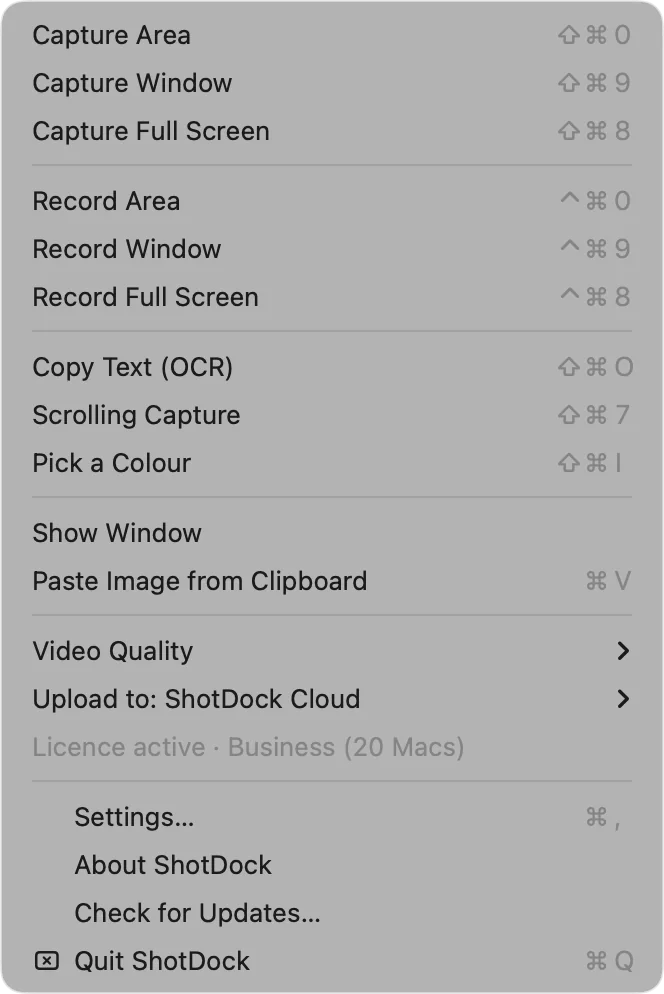
ShotDock takes a different approach. Instead of asking an app to render itself, it watches the area you select while you scroll, and appends each new part of the content to the image. Because it only looks at the screen, it works in any app — browser, chat, table, terminal or native app — and doesn't need to control the other app.
- Press ⇧ ⌘ 7 and drag over the part that scrolls. Leave toolbars and sidebars outside the selection.
- Scroll through the content with your trackpad or mouse at a normal pace.
- Press ⇧ ⌘ 7 again or ⎋ Esc to finish. The long image opens in the editor.
A few details that make it reliable in practice:
- It stitches both ways. In a chat or a terminal you usually scroll up to reach what already went by; ShotDock handles that as well as scrolling down.
- It ignores what doesn't move. Sticky headers, floating “new message” buttons and fixed bars are detected so they don't confuse the stitching or repeat down the image. If one gets in the way too much, it tells you.
- It won't repeat rows in lookalike lists. It compares bands of context, so a table full of similar rows doesn't get stitched twice.
- It warns you instead of guessing. If you scroll faster than it can follow, it says so; scroll back a little and it carries on.
Once the image is in the editor you can crop it, add arrows or numbered steps, pixelate names in a conversation, and then copy it with ⎋, save it with ↩ or upload it and get a link with ⌘ ↩ — a long screenshot is often too big to paste comfortably, so the link helps. See what else the editor does in screenshot editor for Mac.
| Firefox / Chrome / Safari | ShotDock ⇧⌘7 | |
|---|---|---|
| Web pages | Yes | Yes |
| Panels that scroll inside a page | Usually not | Yes |
| Chats, Mail, terminals, native apps | No | Yes |
| Scrolling upwards | No | Yes |
| Only the area you choose | Whole page | Yes |
| Sticky headers | Can repeat or overlap | Detected |
| Annotate and share | Separate tools | Editor + link |
| Price | Free | $12 once, 14-day free trial |
Tips for a clean long screenshot
- Select only the scrolling part. Including a toolbar or a sidebar that doesn't move just adds a strip you'll crop later.
- Scroll steadily. A smooth, moderate scroll gives the cleanest seams; flicking the trackpad hard skips content.
- Let images load first on heavy pages, whichever tool you use.
- Hide private details before sharing. Long captures of chats tend to include names and phone numbers you didn't mean to send.
ShotDock needs macOS 14 or later on an Apple Silicon Mac. The 14-day trial includes scrolling capture and every other feature, with no account.
Frequently asked questions
Can you take a scrolling screenshot on a Mac?
Not with the built-in tools: Shift-Command-3, 4 and 5 only capture what's visible on screen. For a web page you can use your browser (Safari's Export as PDF, Chrome DevTools' Capture full size screenshot, or Firefox's Save full page). For anything else you need an app with scrolling capture, such as ShotDock.
How do I screenshot a full web page on a Mac?
In Firefox, right-click the page, choose Take Screenshot and then Save full page. In Chrome, open DevTools with Option-Command-I, press Shift-Command-P, type screenshot and choose Capture full size screenshot. In Safari, use File → Export as PDF, which gives you the page as a PDF rather than an image.
How do I take a long screenshot of a chat or conversation on a Mac?
Browser tricks don't work on chats because the messages scroll inside a panel, not the page. Use a scrolling capture tool: in ShotDock press Shift-Command-7, select the message area and scroll up through the conversation; it stitches in both directions.
Why does my full-page screenshot have blank images or a repeated header?
Many sites only load images when they scroll into view, so a full-page capture taken without scrolling shows empty boxes; scroll to the bottom first and try again. Sticky headers and floating buttons can also appear in the wrong place because the page is rendered in one go rather than as you see it.
What's the shortcut for a scrolling screenshot on Mac?
macOS doesn't have one. In ShotDock it's Shift-Command-7 (⇧⌘7), next to its other capture shortcuts: ⇧⌘0 for an area, ⇧⌘9 for a window and ⇧⌘8 for the full screen.
Try ShotDock free for 14 days
Every feature unlocked, no account. If you keep it, it's $12 once — no subscription.