The built-in editor: Markup
Markup isn't an app you launch; it's a set of editing tools that appears in several places on the Mac. For screenshots, there are two ways in:
- From the floating thumbnail. Right after you take a screenshot with ⇧ ⌘ 4 or ⇧ ⌘ 3, a thumbnail sits in the bottom-right corner for a few seconds. Click it.
- From Preview. Open any image in Preview and click the Markup button — the pen tip in the toolbar.
(If the thumbnail never appears, it's turned off: ⇧ ⌘ 5 → Options → Show Floating Thumbnail. All the capture shortcuts are in how to screenshot on a Mac.)
What Markup can do
- Sketch and draw freehand. Sketch tidies up rough shapes, so a wobbly circle becomes a clean one.
- Shapes: lines, arrows, rectangles, ovals, a speech bubble and a few more. Set the outline color, fill color and line width in the toolbar.
- Text, with font, size and color.
- Loupe: a circular magnifier you drop over a detail and resize.
- Signature, captured from your trackpad, camera or iPhone.
- Crop and rotate.
Click Done and the changes are saved into the image. In Preview you also get Tools → Adjust Size to make a Retina screenshot smaller before sending it, and Adjust Color for exposure and contrast.
Where Markup falls short
- No blur or pixelate. This is the big one. There's no way to blur an email address, a face or an account number.
- No numbered steps. To label a sequence you type 1, 2, 3 in separate text boxes and line them up by hand.
- No callouts with a separate magnified panel, no stickers.
- No way to remove something from the image — a stray notification, a cursor, a watermark — other than covering it.
- The edit is one shot. Once you click Done in the thumbnail, the annotations are flattened into the picture; you can't go back and move an arrow.
- Annotations can't go past the edge. An arrow pointing in from outside the image gets clipped.
How to crop a screenshot on a Mac
Cropping is the edit people make most, and the Mac gives you three ways to do it.
From the floating thumbnail
- Take the screenshot and click the thumbnail in the bottom-right corner.
- Click the Crop button in the Markup toolbar.
- Drag the corners and edges of the frame to the area you want to keep.
- Click Done. The cropped image replaces the original file.
In Preview
- Open the screenshot in Preview.
- Drag a rectangle over the part you want to keep. The size in pixels appears as you drag.
- Press ⌘ K (Tools → Crop), then ⌘ S to save.
Preview saves the crop into the same file. You can get the original back with File → Revert To, but if you'll need both, File → Duplicate before cropping is simpler.
Skip the crop: capture just the area
Often the quickest crop is not needing one. ⇧ ⌘ 4 lets you drag over exactly the area you want, and ⇧ ⌘ 4 then Space captures a single window without the rest of the screen. To make a Retina screenshot smaller rather than tighter, use Tools → Adjust Size in Preview.
How to hide private info without a blur tool
Since Markup can't blur, the reliable method is a solid box:
- In Markup, open Shapes and pick the rectangle.
- Draw it over the text you want to hide.
- Set the fill color to black (or white, to match the background) so it's fully opaque.
- Click Done.
Don't use the highlighter or a translucent shape to redact. Text under a semi-transparent color is still readable — just turn up the brightness. A box only hides something if it's completely opaque and the image is flattened, which is the case with a PNG or JPG saved from Markup.
A black box is ugly but secure. When the screenshot is going into documentation or a slide, a pixelated or blurred area looks far cleaner and still makes clear that something was hidden. If you do pixelate, use big blocks: a light blur on a short string like a PIN can sometimes be reversed.
ShotDock's screenshot editor
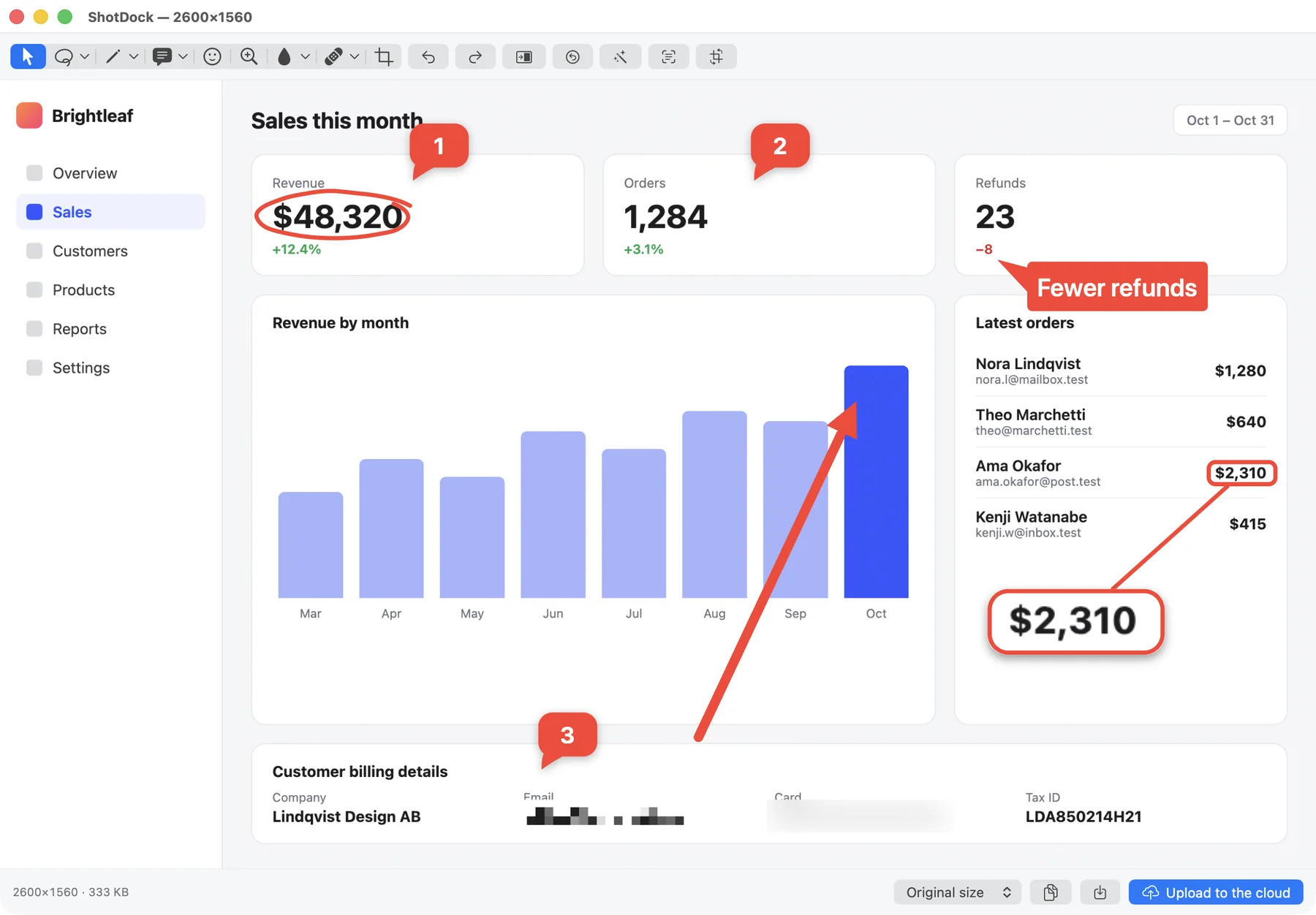
ShotDock opens every capture straight into an editor — no thumbnail to catch in time. It has more than twenty tools and each one is a single letter, like in Photoshop or Figma, so you rarely touch the toolbar.
Annotate
- A arrow, L line, R rectangle, O oval, Q hand-drawn circle, P pencil, H highlighter.
- T text callouts with a tail you can aim, or plain text with a shadow; N handwritten-style text.
- S numbered steps: click, click, click and you get 1, 2, 3 — the counter keeps track for you.
- Z magnifier: mark a detail and it's blown up (1.5× to 6×) in a panel joined by a line, without cropping the shot.
- F stickers and emoji, searchable.
Hide
- M pixelate and B blur. Drag over a name, an email or a card number. Both stay as objects, so you can move or resize them later.
Retouch
This is where ShotDock goes beyond a typical screenshot editor, with tools usually found in photo editors:
- E content-aware erase: paint over a notification, a logo or an object and it rebuilds the background behind it, matching texture and gradient instead of leaving a blotch.
- J dust removal: sweep over a scanned document and it fills in the specks one by one, while leaving letters, accents and punctuation alone.
- K clone, W warp, D dodge and burn, G pinch and bloat.
- C crop and V select to move anything you've drawn.
Things that just work
- Undo everything. ⌘ Z and ⇧ ⌘ Z work on every stroke, including the retouching tools.
- The canvas grows. If an arrow or callout runs off the edge, the image widens instead of clipping it.
- Tools remember their settings — color, width, size — even after you quit.
- Finish with one key. ⎋ Esc copies and closes, ↩ saves, ⌘ ↩ uploads and copies a link (to ShotDock's cloud or your own S3 bucket).
| Markup (built in) | ShotDock | |
|---|---|---|
| Arrows, shapes, text | Yes | Yes, one key per tool |
| Crop | Yes | Yes |
| Magnifier | Loupe over the image | Separate panel, 1.5×–6× |
| Blur and pixelate | No — solid box only | Yes, editable afterwards |
| Numbered steps | No | Yes |
| Erase an object, rebuild background | No | Yes |
| Dust removal, clone, warp, dodge/burn | No | Yes |
| Annotations past the edge | Clipped | Canvas grows |
| Share link | No | Yes |
| Price | Free | $12 once, 14-day free trial |
The same editor opens after a scrolling capture, so long screenshots get every tool too. ShotDock needs macOS 14 or later on an Apple Silicon Mac; the trial has every tool and no account.
Frequently asked questions
How do I edit a screenshot on a Mac?
Click the thumbnail that appears in the bottom-right corner right after you take the screenshot; it opens in Markup, where you can draw, add shapes, arrows and text, crop and rotate. If the thumbnail is gone, open the file in Preview and click the Markup button (the pen tip).
How do I blur part of a screenshot on a Mac?
The built-in tools can't blur or pixelate. The safe workaround is to draw a rectangle in Markup and set its fill color to black or white so it covers the text completely. To actually blur or pixelate, use an editor such as ShotDock: press M for pixelate or B for blur and drag over the area.
Is drawing a box over text enough to hide it?
Yes, as long as the box is fully opaque and the image is saved as a flat PNG or JPG, which is what Markup does with screenshots. Don't use the highlighter or a semi-transparent shape: the text can still be read underneath. Light blur on short text can sometimes be reversed, so for passwords or card numbers a solid box or heavy pixelation is safer.
How do I crop a screenshot on a Mac?
In Markup, click the Crop button, drag the corners and click Done. In Preview you can also drag a rectangular selection and press Command-K (Tools → Crop). In ShotDock, press C.
What is the best screenshot editor for Mac?
For occasional arrows and boxes, the built-in Markup is enough. If you need blur or pixelate, numbered steps, a magnifier, callouts, or want to remove objects from an image, a dedicated editor saves time. ShotDock includes all of those plus content-aware erase and dust removal, for $12 once.
Try ShotDock free for 14 days
Every feature unlocked, no account. If you keep it, it's $12 once — no subscription.