First, what exactly is failing?
- Nothing happens when you press the keys — no sound, no crosshair: start with fixes 1, 2 and 4.
- The screenshot is taken but the file isn't there: fix 3, and our guide to where screenshots go on a Mac.
- Part of the screenshot is black: fix 7.
- Only a screenshot app fails, not the built-in shortcuts: fix 6.
1. Make sure the shortcuts are turned on
The screenshot shortcuts can be switched off or reassigned without you noticing, sometimes by an app's installer.
- Open System Settings → Keyboard and click Keyboard Shortcuts….
- Select Screenshots in the list on the left.
- Make sure every shortcut is ticked and shows the expected keys: ⇧ ⌘ 3, ⇧ ⌘ 4, ⇧ ⌘ 5 and their ⌃ clipboard versions.
- If anything looks off, click Restore Defaults.
While you're there, check that the keyboard itself is fine: try ⇧ ⌘ 5. If the toolbar opens, the screenshot system works and the problem is a specific shortcut. On a Windows keyboard, ⌘ Command is the Windows key — see Print Screen on a Mac for the full mapping.
2. Look for another app taking the keys
Only one app can own a shortcut. Screenshot apps (Snagit, CleanShot X, Shottr, Lightshot), cloud storage clients that save screenshots, window managers and keyboard remappers can all intercept ⇧ ⌘ 4. Quit them one at a time from the menu bar and try again. When you find the culprit, change its shortcut in its own settings.
3. Check where screenshots are being saved
If you hear the shutter but can't find the file, the screenshot went somewhere else. Press ⇧ ⌘ 5, click Options and look under Save to:
- If it's set to Clipboard, nothing is saved as a file; paste with ⌘ V.
- If it points to a folder you've since moved, renamed or deleted, or to an external drive that isn't connected, choose a folder that exists.
- If your disk is full, the Mac can't write the file. Check System Settings → General → Storage.
4. Restart the screenshot service
The screenshot tools run in background processes that occasionally get stuck, particularly after sleep. Open Terminal and run:
killall SystemUIServerThe menu bar flickers and comes back. Try the shortcut again. If that doesn't help, restart the Mac — it clears every stuck process at once and fixes a surprising number of cases.
5. Reset the screenshot settings
Settings changed with Terminal commands found online (format, location, shadow, file name) can leave the screenshot tool in a strange state. This puts everything back to the factory defaults:
defaults delete com.apple.screencapture
killall SystemUIServer
Screenshots will go back to PNG files on the Desktop, with the floating thumbnail and window shadows turned on.
6. Check screen recording permission for third-party apps
The built-in shortcuts don't need permission, but every other screenshot or recording app does. If an app's screenshots come out as just the desktop wallpaper, or it shows an error:
- Open System Settings → Privacy & Security → Screen & System Audio Recording.
- Find the app and turn it on. If it's already on, turn it off and on again.
- Quit and reopen the app; macOS only applies the change after a restart of the app.
Recent macOS versions also ask you from time to time to confirm that an app may keep recording the screen. If you dismissed that prompt, the permission may be paused until you allow it again.
7. Black screenshots are protected content
If the screenshot works but a video area comes out black, that's on purpose. Apps that play protected video — streaming services in Safari, the Apple TV app and others — black out their content in screenshots and screen recordings. No setting or app gets around it, and that includes ShotDock.
8. Check whether the Mac is managed
Work and school Macs can have screenshots and screen recording disabled by the organisation. Open System Settings → General → Device Management. If a profile is installed and screenshots still won't work after the steps above, the restriction is probably deliberate; ask your IT team.
Still stuck? Start the Mac in safe mode, which loads no third-party software. If screenshots work there, something you've installed is interfering — go back to fix 2.
A screenshot tool that doesn't depend on the built-in shortcuts
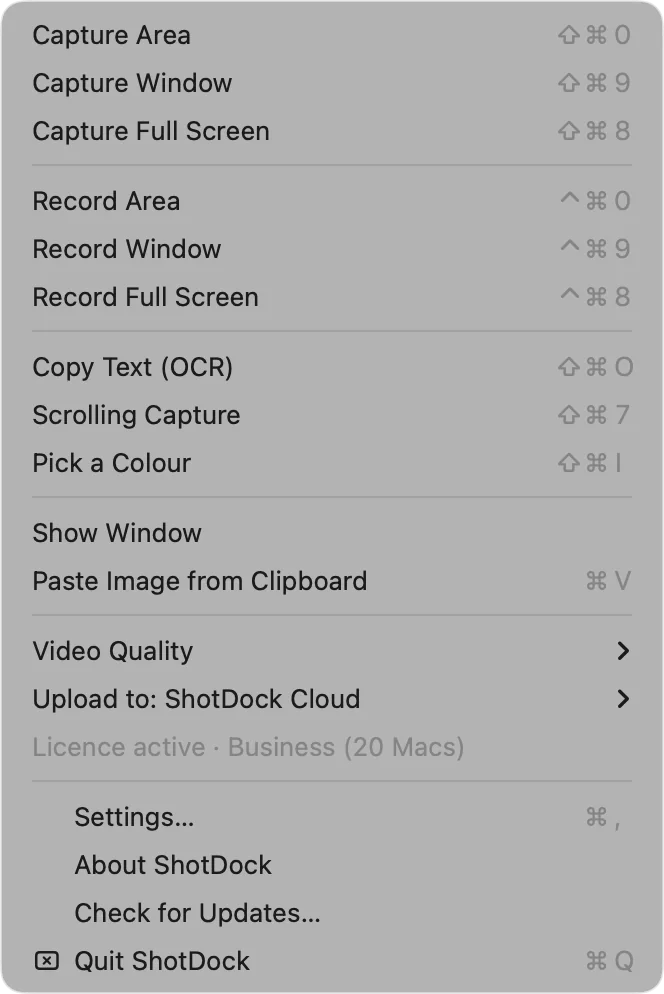
If you've fixed the shortcuts but want more than they offer, ShotDock is a Mac screenshot and screen recording app with its own shortcuts — ⇧ ⌘ 0 (area), ⇧ ⌘ 9 (window), ⇧ ⌘ 8 (screen) — that don't clash with the macOS ones, plus a menu bar icon for capturing with the mouse. You can change any shortcut in its settings if another app already uses it.
Each capture opens in an editor with blur, pixelate, arrows and numbered steps; it also does scrolling screenshots, text recognition and screen recording with your Mac's sound and webcam. Like any third-party app, it needs the Screen & System Audio Recording permission described in fix 6. It's $12 once, with a 14-day trial; if you're comparing, see how it stacks up against Shottr.
Frequently asked questions
Why is Shift-Command-4 not working on my Mac?
The shortcut may be turned off or changed in System Settings → Keyboard → Keyboard Shortcuts… → Screenshots, or another app may have taken the same keys. Click Restore Defaults in that panel, then quit apps that offer their own screenshot tools and try again.
Why are my screenshots not saving on my Mac?
Usually the save location points to a folder that was moved or deleted, it's set to Clipboard, or the disk is full. Press Shift-Command-5, click Options and choose an existing folder under Save to.
Why are my Mac screenshots black?
Video playing in apps that protect content, such as streaming services, shows up black in screenshots and recordings. That's deliberate and no setting changes it. If an app other than the built-in tool produces black screenshots, give it permission in Privacy & Security → Screen & System Audio Recording.
How do I reset screenshot settings on a Mac?
Open Terminal and run: defaults delete com.apple.screencapture — then: killall SystemUIServer. Location, format, shadow and thumbnail settings return to their defaults.
Can a work Mac block screenshots?
Yes. A Mac managed by an organisation can have screenshots and screen recording disabled through a configuration profile. Check System Settings → General → Device Management; if there's a profile, ask your IT team.
Try ShotDock free for 14 days
Every feature unlocked, no account. If you keep it, it's $12 once — no subscription.