The short answer
Print Screen on a Mac is ⇧ ⌘ 3. It captures the entire screen and saves it as a PNG on your Desktop. If you want it on the clipboard, the way PrtScn works on Windows, add Control: ⌃ ⇧ ⌘ 3, then paste with ⌘ V.
Every Windows screenshot key, translated
| On Windows | What it does | On a Mac |
|---|---|---|
| PrtScn | Whole screen to clipboard | ⌃⇧⌘3 |
| Win + PrtScn | Whole screen saved as a file | ⇧⌘3 |
| Alt + PrtScn | Active window to clipboard | ⌃⇧⌘4, then Space, then click the window |
| Win + Shift + S | Snip an area to clipboard | ⌃⇧⌘4, then drag |
| Snipping Tool | Snip, delay, annotate | ⇧⌘5 toolbar (timer under Options) |
| Win + Alt + R / Snipping Tool record | Record the screen | ⇧⌘5, then Record Entire Screen or Record Selected Portion |
| Ctrl + V | Paste | ⌘V |
The pattern to remember: on a Mac, screenshot shortcuts save a file, and adding ⌃ Control sends them to the clipboard. On Windows it's mostly the other way round, which is why switchers end up with dozens of “Screenshot …” files on the Desktop. If you'd rather every screenshot go to the clipboard, press ⇧ ⌘ 5, click Options and choose Clipboard under Save to.
Whole screen: ⇧ ⌘ 3
Captures everything immediately. With two displays you get two files, one per display. On Windows, PrtScn captures all monitors as one wide image; the Mac doesn't have that option.
One window: ⇧ ⌘ 4, then Space
The pointer becomes a camera and highlights the window under it; click to capture. Mac window screenshots include a drop shadow — hold ⌥ Option as you click to leave it out.
An area: ⇧ ⌘ 4
Drag a rectangle. Hold Space while dragging to move the selection, ⇧ Shift to lock one side, and press ⎋ Esc to cancel. If you're looking for the full Snipping Tool experience, our Snipping Tool for Mac guide covers every mode.
Using a Windows keyboard on a Mac
A PC keyboard works fine on a Mac, with two keys swapped in meaning:
- The Windows key is ⌘ Command.
- Alt is ⌥ Option.
So ⇧ ⌘ 3 becomes Shift + Windows + 3. If the keys feel backwards because Command and Option are in different positions than on a Mac keyboard, swap them in System Settings → Keyboard → Keyboard Shortcuts… → Modifier Keys, choosing the external keyboard at the top.
Make the PrtScn key work
macOS sees the Print Screen key as F13, and nothing is assigned to it out of the box. You can give it a job:
- Open System Settings → Keyboard and click Keyboard Shortcuts….
- Select Screenshots.
- Double-click the shortcut next to Copy picture of screen to the clipboard (or Save picture of screen as a file).
- Press the PrtScn key. It shows up as F13.
- Click Done. Now Print Screen behaves as it did on Windows.
The same works for Screenshot and recording options if you'd rather PrtScn open the ⇧ ⌘ 5 toolbar.
How to actually print a screenshot
Some people searching for “print screen” want a paper copy. Take the screenshot as above, then:
- Open the file in Preview (double-click it on the Desktop).
- Press ⌘ P.
- Pick the printer, and choose Scale to Fit if the image is bigger than the page. Retina screenshots usually are.
If you only need part of the screen, crop it first: in Preview, drag a selection and press ⌘ K. Our guide on how to edit, crop and blur a screenshot covers Preview's other tools.
Where the screenshot went
Unless you added Control, it's on your Desktop, named Screenshot with the date and time. If it's not there, the save location was changed; see where do screenshots go on a Mac.
A Snipping Tool–style app for the Mac
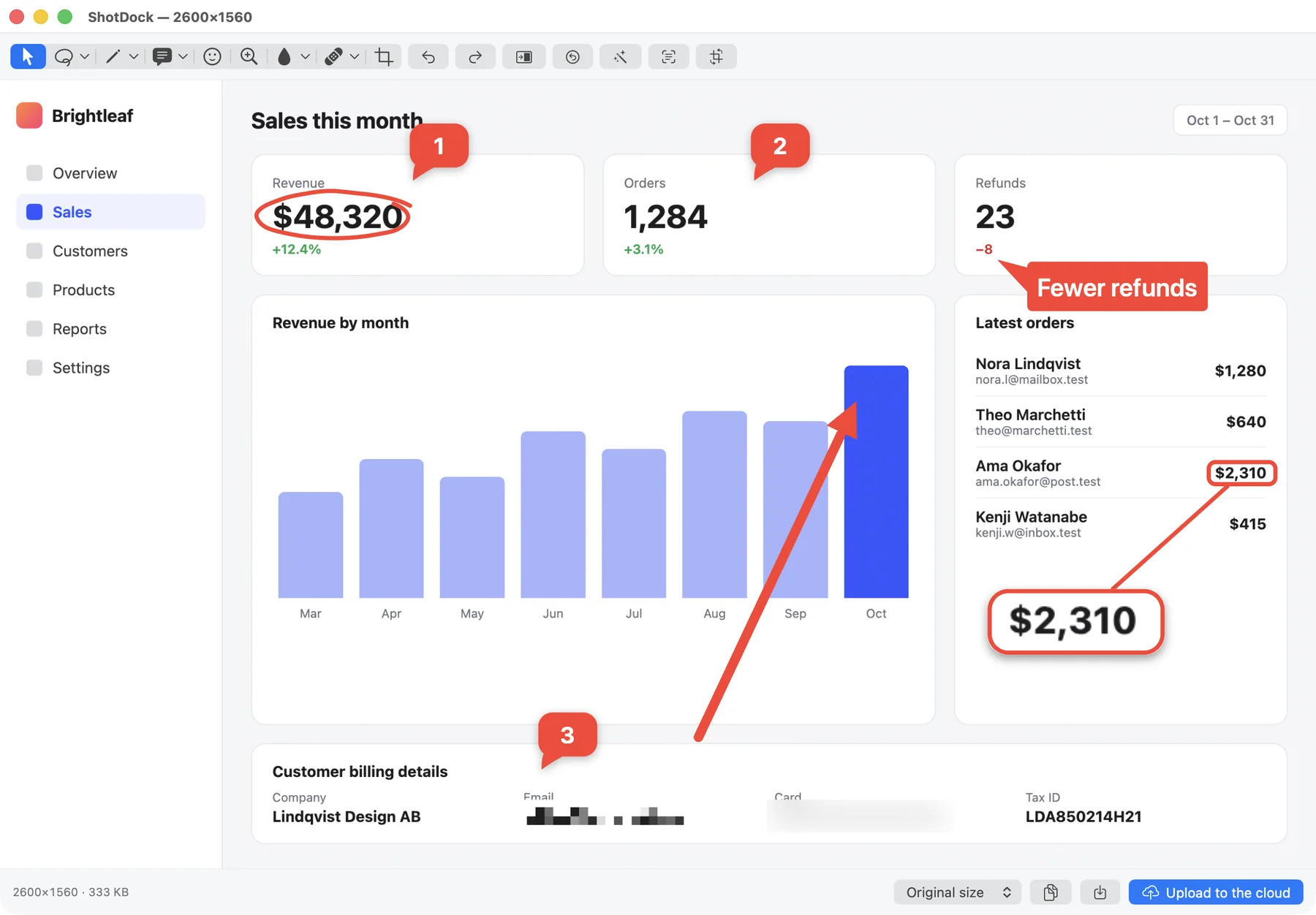
The built-in shortcuts cover the basics. What Windows switchers tend to miss is one place where they snip, mark up and copy. ShotDock is a screenshot and screen recording app for the Mac that works that way:
- ⇧ ⌘ 8 captures the full screen, ⇧ ⌘ 0 an area, ⇧ ⌘ 9 a window. The macOS shortcuts keep working.
- Every capture opens in an editor: arrows, boxes, text, numbered steps, blur and pixelate, each on a single key.
- ⎋ Esc copies the result and closes the window — the Windows habit — and ↩ saves a file.
- It adds scrolling capture, text recognition and screen recording with your Mac's sound and webcam.
It's $12 once for up to three Macs, with a 14-day free trial and no account. If you used Snagit at work on Windows, compare the two in Snagit alternative for Mac.
Frequently asked questions
What is Print Screen on a Mac?
Shift-Command-3 (⇧⌘3) captures the whole screen and saves it as a file on the Desktop. To copy it to the clipboard instead, like PrtScn on Windows, press Control-Shift-Command-3 (⌃⇧⌘3).
How do I print screen on a MacBook Air or MacBook Pro?
The same way as on any Mac: Shift-Command-3 for the whole screen, Shift-Command-4 to drag over an area, and Shift-Command-4 then Space to capture one window. MacBooks have no Print Screen key.
How do I print screen on a Mac with a Windows keyboard?
The Windows key acts as Command and Alt acts as Option, so press Shift-Windows-3. The Print Screen key itself is seen by macOS as F13 and does nothing by default, but you can assign it to a screenshot in System Settings → Keyboard → Keyboard Shortcuts… → Screenshots.
What is the Mac equivalent of Alt + Print Screen?
Shift-Command-4, then press the Space bar and click the window. It captures only that window. Add Control to copy it to the clipboard instead of saving a file.
How do I print a screenshot on paper from a Mac?
Take the screenshot, open the file in Preview and press Command-P. In the print dialog, choose Scale to Fit if the screenshot is larger than the page.
Try ShotDock free for 14 days
Every feature unlocked, no account. If you keep it, it's $12 once — no subscription.