The short answer
If you only remember one thing: the Mac version of Win + Shift + S is ⌃ ⇧ ⌘ 4. Drag over an area and it goes to the clipboard, just like a snip on Windows. Paste it with ⌘ V.
The one-key difference matters. On Windows a snip goes to the clipboard by default and you choose to save it. On a Mac it's the other way around: ⇧ ⌘ 4 saves a file to your Desktop, and adding ⌃ Control sends it to the clipboard instead. Most Windows switchers end up with a Desktop full of “Screenshot …” files in their first week because of this.
Every Snipping Tool mode, on a Mac
| Windows Snipping Tool | Mac equivalent | ShotDock |
|---|---|---|
| Open the snip bar (Win + Shift + S) | ⇧⌘5 opens a toolbar with every mode | Each mode has its own shortcut |
| Rectangular snip | ⇧⌘4, drag (add ⌃ for clipboard) | ⇧⌘0 |
| Window snip | ⇧⌘4, then Space, click (⌥ removes the shadow) | ⇧⌘9 |
| Full-screen snip | ⇧⌘3 | ⇧⌘8 |
| Free-form snip | Not available | Area capture + hand-drawn circle (Q) |
| Delay (3, 5, 10 s) | ⇧⌘5 → Options → Timer (5 or 10 s) | Use the macOS timer |
| Pen, highlighter, crop | Click the thumbnail → Markup | Opens in the editor automatically |
| Copy text from the image | Live Text, in Preview, Photos and Safari | ⇧⌘O on anything on screen |
| Screen recording | ⇧⌘5 → Record | ⌃⌘0 / ⌃⌘9 / ⌃⌘8, with system audio |
| Print Screen key | No such key; use ⇧⌘3 (details) | ⇧⌘8 |
Rectangular snip: ⇧ ⌘ 4
The pointer turns into a crosshair; drag over what you want. Hold Space while dragging to move the selection, or press ⎋ Esc to cancel. Add ⌃ to copy it instead of saving it.
Window snip: ⇧ ⌘ 4 then Space
After pressing ⇧ ⌘ 4, tap Space: the crosshair becomes a camera and the window under it is highlighted. Click it. Mac window snips include a drop shadow by default; hold ⌥ Option while clicking to leave it out.
Full-screen snip: ⇧ ⌘ 3
Captures the whole screen immediately — one file per display if you have several. Macs don't have a Print Screen key, so this is the shortcut to learn.
Free-form snip: not on a Mac
This is the only Snipping Tool mode with no Mac equivalent. macOS captures rectangles and windows, nothing else. If you used free-form to point at something irregular, capture a rectangle around it and draw a circle or highlight over the part that matters — it usually communicates better anyway. If you really need an irregular cut-out, open the screenshot in Preview and use the Lasso Selection tool in Markup, then copy.
Delay: ⇧ ⌘ 5 → Options → Timer
The Windows Snipping Tool offers a 3, 5 or 10-second delay. On a Mac, press ⇧ ⌘ 5, open Options, pick 5 Seconds or 10 Seconds under Timer and click Capture. That's how you capture a menu or a tooltip that disappears as soon as you press a key.
Annotating: Markup
After any screenshot, a thumbnail slides into the bottom-right corner for a few seconds. Click it and you get Markup: pen, highlighter, shapes and arrows, text, a magnifier loupe, a signature, crop and rotate. Click Done to save. If you missed the thumbnail, open the file in Preview and click the pen-tip button. Our guide to editing screenshots on a Mac goes through what it can and can't do.
Where's the Snipping Tool's save location? On a Mac the default is the Desktop. Change it in ⇧ ⌘ 5 → Options → Save to. You can even choose Clipboard there, which makes every shortcut behave like Windows without having to add Control. The full list of shortcuts and settings is in how to screenshot on a Mac.
What you'll miss coming from Windows
The macOS tools cover the basics, but they're spread across shortcuts and a separate editor. Compared to a dedicated snipping tool — or to Snagit, which many people used at work on Windows — you'll notice that there's:
- No single window where you snip, mark up and copy in one go: Markup only opens if you click the thumbnail in time.
- No blur or pixelate to hide an email, a name or a card number; only a filled box.
- No scrolling capture for pages or chats longer than the screen (see scrolling screenshots on a Mac).
- No share link. You get a file and have to send it yourself.
ShotDock: a snipping tool for the Mac
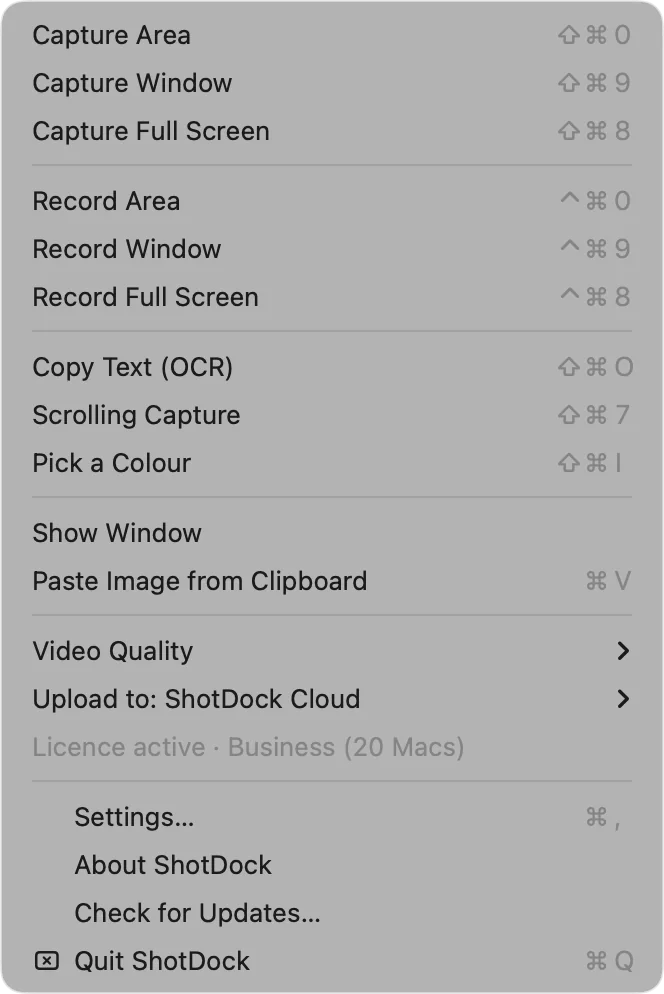
ShotDock works the way Windows users expect a snipping tool to work, without giving up what the Mac does well:
- Press ⇧ ⌘ 0 and drag over an area (or ⇧ ⌘ 9 for a window, ⇧ ⌘ 8 for the screen). The macOS shortcuts keep working alongside it.
- The snip opens straight in the editor. Add an arrow (A), a box (R), text (T), numbered steps (S), or pixelate something private (M).
- Press ⎋ Esc: it's copied to the clipboard and the window closes — the same habit as on Windows. Press ↩ to save a file instead, or ⌘ ↩ to upload it and get a link.
It also brings the extras Windows 11's Snipping Tool has, and a few it doesn't: text recognition from anything on screen with ⇧ ⌘ O (on-device, English and Spanish), a color picker with ⇧ ⌘ I, scrolling capture with ⇧ ⌘ 7, and screen recording with your Mac's sound and your webcam.
ShotDock or Snagit?
If you're searching for “Snagit snipping tool for Mac”, Snagit does run on macOS and is a solid editor, but it costs several times more and is sold as a yearly subscription. ShotDock is $12 once for up to three Macs. We compare them feature by feature in Snagit alternative for Mac.
ShotDock needs macOS 14 or later on an Apple Silicon Mac. The 14-day trial has every feature and no account.
Frequently asked questions
Is there a snipping tool for Mac?
Not with that name, but macOS has the same features built in. Shift-Command-4 snips an area, Shift-Command-4 then Space snips a window, Shift-Command-3 takes the full screen, and Shift-Command-5 opens a toolbar with a timer and screen recording. Apps like ShotDock add the snip-then-annotate workflow in one window.
Does a MacBook have a snipping tool?
Yes. Every MacBook Air and MacBook Pro has the same built-in screenshot tools as any Mac: Shift-Command-4 to snip an area, Shift-Command-4 then Space for a window, Shift-Command-3 for the full screen, and Shift-Command-5 for a toolbar with a timer and screen recording. Nothing needs to be installed.
What is the Snipping Tool shortcut on Mac?
The closest match to Windows + Shift + S is Control-Shift-Command-4 (⌃⇧⌘4): you drag over an area and it goes straight to the clipboard, ready to paste. Without Control (⇧⌘4) it's saved as a file on the Desktop instead. Shift-Command-5 (⇧⌘5) opens a toolbar with every mode, like the Snipping Tool window.
How do I snip a free-form shape on a Mac?
macOS has no free-form snip; captures are always rectangles or whole windows. The usual workaround is to capture a rectangle and then circle or highlight the part that matters, or cut it out with the Lasso selection in Preview.
How do I take a delayed screenshot on a Mac?
Press Shift-Command-5, open Options and choose a 5- or 10-second timer, then click Capture. It's the equivalent of the delay setting in the Windows Snipping Tool.
Can I annotate a snip on a Mac like in the Snipping Tool?
Yes. Click the thumbnail that appears in the corner after a screenshot to open Markup, which has a pen, highlighter, shapes, arrows, text and crop. For blur, pixelate, numbered steps or a share link you need an app such as ShotDock.
Try ShotDock free for 14 days
Every feature unlocked, no account. If you keep it, it's $12 once — no subscription.