The quick way: Shift-Command-5
Every Mac since macOS Mojave has a screen recorder built in. Press ⇧ ⌘ 5 and a toolbar appears at the bottom of the screen.
- Choose Record Entire Screen, Record Selected Window (recent macOS versions) or Record Selected Portion — the buttons with the small record dot.
- Open Options to pick where the file is saved, set a 5- or 10-second timer, and choose a microphone if you want your voice.
- Click Record. If you're recording the whole screen and have more than one display, click the one you want.
- To stop, click the stop button in the menu bar or press ⌃ ⌘ ⎋. (If it won't stop, or you can't find the file, see how to stop screen recording on a Mac.)
A thumbnail slides in at the bottom-right corner. Click it to trim the clip, or ignore it and the file is saved to your Desktop as a .mov.
QuickTime does the same thing. In QuickTime Player, File → New Screen Recording opens the exact same toolbar. It's not a different recorder.
The three things the built-in recorder can't do
1. Record the sound coming out of your Mac
The built-in recorder only lists microphones as an audio source. If you're recording a demo with sound, a bug in a web app that plays an alert, or a video call, the Mac's own audio won't be in the file. Pointing your microphone at the speakers technically works and sounds exactly like it.
The usual workaround is a virtual audio driver such as BlackHole plus a Multi-Output Device in Audio MIDI Setup — it works, but you have to remember to switch your output back afterwards. The simpler route is a recorder that captures system audio directly. Both are explained step by step below.
2. Put your webcam on top of the recording
Tutorials and async updates land better when people can see who's talking (for a webcam-only video, see how to record a video of yourself on a Mac). macOS has no camera overlay in the screenshot toolbar, but there's a well-known trick:
- Open QuickTime Player → File → New Movie Recording. A window with your camera appears.
- Make it small, drag it to a corner and choose View → Float on Top.
- Now start a normal screen recording with ⇧ ⌘ 5. The camera window is on screen, so it ends up in the video.
It's a rectangle with a title bar, and if you move it mid-recording you'll see it in the video — but it's free.
Other free options, OBS Studio and Zoom among them, are compared in free screen recorders for Mac.
3. Give you a file you can actually share
macOS records in real pixels. On a Retina display, a 1280-point-wide window becomes a 2560-pixel video, and a few minutes easily weighs hundreds of megabytes. Slack, email and most issue trackers will either reject it or make everyone wait. You end up exporting it again from QuickTime or iMovie at a lower resolution.
How to record internal audio on Mac
“Internal audio” is the sound your Mac plays: a video, an app's alert, the other people on a call. macOS 26 still doesn't offer it in ⇧ ⌘ 5, which only lists microphones. There are three ways to get it into a recording.
With an app that captures system audio
Since macOS 13, apps can capture the Mac's sound directly through Apple's ScreenCaptureKit, with no driver to install. ShotDock (below) and OBS Studio both do this. The first time, macOS asks you to allow the app in System Settings → Privacy & Security → Screen & System Audio Recording. Because the sound is captured digitally, it records cleanly even with headphones on.
With a free virtual audio driver and the built-in recorder
- Install BlackHole 2ch, a free, open-source virtual audio driver.
- Open Audio MIDI Setup (in Applications → Utilities), click + at the bottom left and choose Create Multi-Output Device.
- Tick your speakers or headphones and BlackHole 2ch. Put your speakers first and turn on Drift Correction for BlackHole.
- In System Settings → Sound → Output, choose the Multi-Output Device. You'll keep hearing the sound, and BlackHole gets a copy.
- Press ⇧ ⌘ 5, open Options and pick BlackHole 2ch as the microphone. Record as usual.
- When you're done, switch the output back to your speakers.
The downsides: the volume keys don't work while a Multi-Output Device is selected, and to record your voice as well you need a second device (an Aggregate Device combining BlackHole and your mic) selected as the input.
By pointing the mic at the speakers
It technically works and sounds like it: echoey, with room noise and your keyboard. Fine for a quick check, not for anything you'll share.
Recording your screen with ShotDock
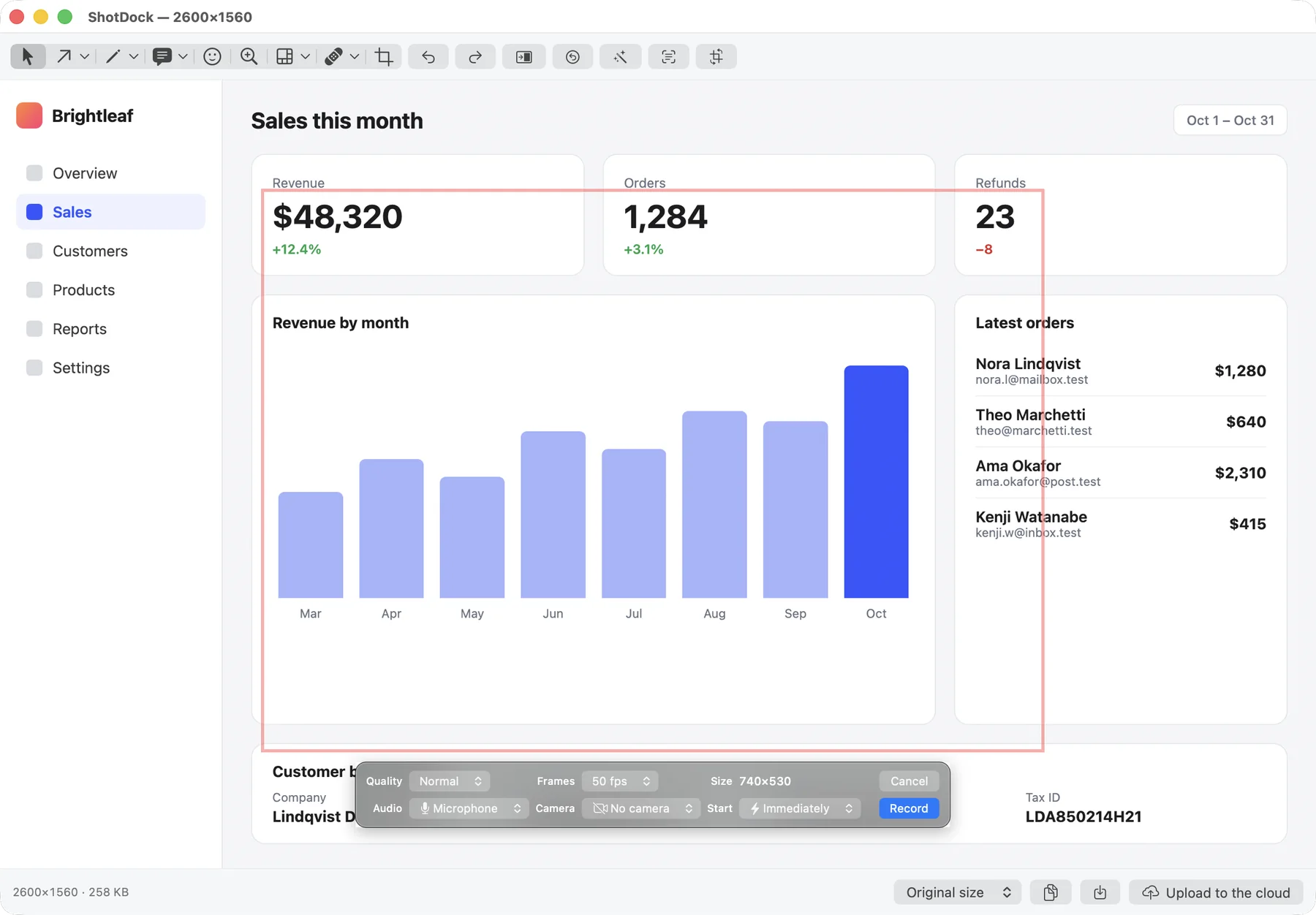
ShotDock is a Mac screenshot and screen recording app that fills exactly those three gaps — and keeps everything one shortcut away.
- Press ⌃ ⌘ 0 to record an area, ⌃ ⌘ 9 for a window or ⌃ ⌘ 8 for the whole screen.
- A small bar appears before anything starts. Pick the quality (half, normal or Retina), frame rate (15, 30, 50 or 60 fps), audio (Mac sound, microphone, or both mixed) and camera (none, circle or rectangle). It shows the exact size the video will be.
- Your camera appears in the bottom-right corner. Drag it anywhere — even while recording — and double-click to make it bigger.
- Hit Record (optionally with a 3, 5 or 10-second countdown). Pause and resume with ⌃ ⌘ P; the video comes out continuous, with no frozen frame.
- Stop with the same shortcut. You get a preview with duration and file size, and you can save, copy the file, or upload it and get a link on your clipboard.
| ⇧⌘5 / QuickTime | ShotDock | |
|---|---|---|
| Your microphone | Yes | Yes |
| Sound playing on the Mac | No | Yes, or mixed with your mic |
| Webcam overlay | Only with the QuickTime trick | Circle or rectangle, movable while recording |
| Pause and resume | No | Yes, ⌃⌘P |
| Record a single window | Yes, on recent macOS | Yes, even with other windows on top |
| Output | .mov at full Retina resolution | .mp4 (H.264), you pick the resolution |
| Share link | No | Yes, copied to the clipboard |
| Price | Free | $12 once, 14-day free trial |
How big will my recording be?
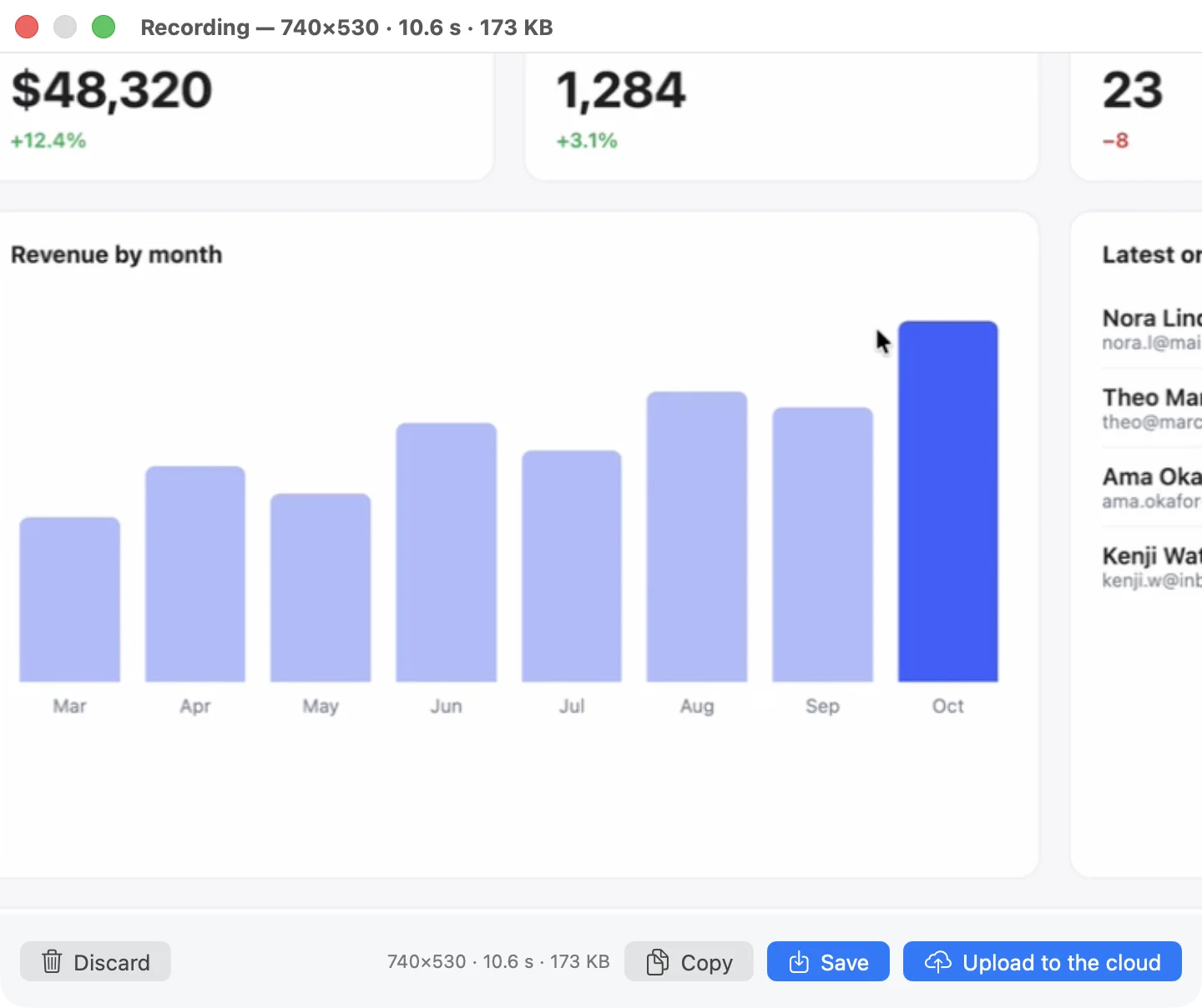
ShotDock records with ScreenCaptureKit, which only delivers a new frame when something on screen changes. A demo where only the cursor moves is mostly identical frames, so it compresses extremely well: in our tests, 4 seconds of a 400×300 window came out at 59 KB. What really drives the size is resolution — which is why recording at one pixel per point instead of two cuts a typical file to roughly a quarter.
Tips for a recording people will actually watch
- Record an area, not the whole screen. Viewers on a laptop can't read text from a scaled-down 5K display.
- Hide your notifications. Turn on a Focus mode before you start.
- Use 50 fps for tutorials. At 30 the cursor looks choppy; 60 weighs a third more without looking better.
- Pause instead of re-recording. If you need to look something up, pause and resume — nobody sees the gap.
Frequently asked questions
Can I screen record on a Mac with internal audio?
Not with the built-in recorder: Shift-Command-5 and QuickTime only offer microphones as an audio source. To record the sound playing on your Mac you need an app that captures system audio, such as ShotDock or OBS Studio, or a free virtual audio driver like BlackHole routed into the built-in recorder.
How do I record internal audio and my voice at the same time?
In ShotDock, set audio to System + microphone and both are mixed into one track. In OBS Studio, add the macOS Screen Capture source for system audio and a separate audio input for the microphone. With BlackHole and the built-in recorder you need an Aggregate Device in Audio MIDI Setup that combines BlackHole and your microphone.
Where do Mac screen recordings go?
To the Desktop by default, as a .mov file named “Screen Recording” with the date. You can change the folder in Shift-Command-5 → Options → Save to.
How do I stop a screen recording on Mac?
Click the Stop button in the menu bar, or press Control-Command-Esc (⌃⌘⎋).
How do I record my screen and my face at the same time?
With the built-in tools, open QuickTime Player → File → New Movie Recording, set the camera window to float on top, then start a screen recording with Shift-Command-5. With ShotDock you pick Camera → Circle or Rectangle before recording and the bubble is already in place.
Why are Mac screen recordings so big?
macOS records every Retina pixel: a 1280-point window comes out 2560 pixels wide. For something that ends up in Slack or an email you rarely need more than 1080p, which is why ShotDock records at one pixel per point by default — about a quarter of the pixels.
Try ShotDock free for 14 days
Every feature unlocked, no account. If you keep it, it's $12 once — no subscription.