Three ways to stop a screen recording
These work for any recording started with ⇧ ⌘ 5 or with File → New Screen Recording in QuickTime Player — both use the same recorder.
1. The stop button in the menu bar
While the Mac is recording, a small stop button — a circle with a square inside — sits on the right side of the menu bar, near the clock. Click it and the recording ends. If you're in a full-screen app and the menu bar is hidden, move the pointer to the top edge of the screen to bring it back.
2. The keyboard: ⌃ ⌘ ⎋
Press Control + Command + Esc together. This is the quickest way, and it works when the menu bar is out of reach. Don't confuse it with ⌥ ⌘ ⎋ (with Option), which opens the Force Quit window.
3. The screenshot toolbar
Press ⇧ ⌘ 5 again. During a recording the toolbar shows a Stop Recording button; click it.
Using a Touch Bar MacBook Pro? The stop button also appears on the Touch Bar during a recording.
Where the recording is saved
When you stop, a thumbnail slides into the bottom-right corner. Leave it and after a few seconds the video is saved. Click it to trim the start and end before saving; drag it into an app to put the video there instead.
- Started with ⇧ ⌘ 5: saved to the Desktop as a
.movnamed Screen Recording followed by the date and time — unless you chose another place in Options → Save to. - Started from QuickTime: the video opens in a QuickTime window and isn't saved yet. Choose File → Save (⌘ S) to name it and pick a folder.
Can't find it? Check the Save to setting first (⇧ ⌘ 5 → Options). Our guide on where screenshots and recordings go on a Mac walks through every place they can end up, including iCloud Drive.
When a recording won't stop
It's rare, but the recorder can hang, especially after waking from sleep or unplugging a display. Go through these in order:
- Press ⌃ ⌘ ⎋, then wait a few seconds. Long recordings take a moment to finish writing.
- Press ⇧ ⌘ 5 and look for the stop button.
- If the menu bar stop button is missing, open Activity Monitor, search for
screencapture, select the process and click the ✕ button to quit it. Whatever was recorded may be lost. - If nothing responds, restart the Mac from the Apple menu.
If recordings regularly stop on their own, check free disk space — a few minutes of Retina video can take gigabytes — and keep the Mac from sleeping during long sessions.
Stopping a recording in ShotDock
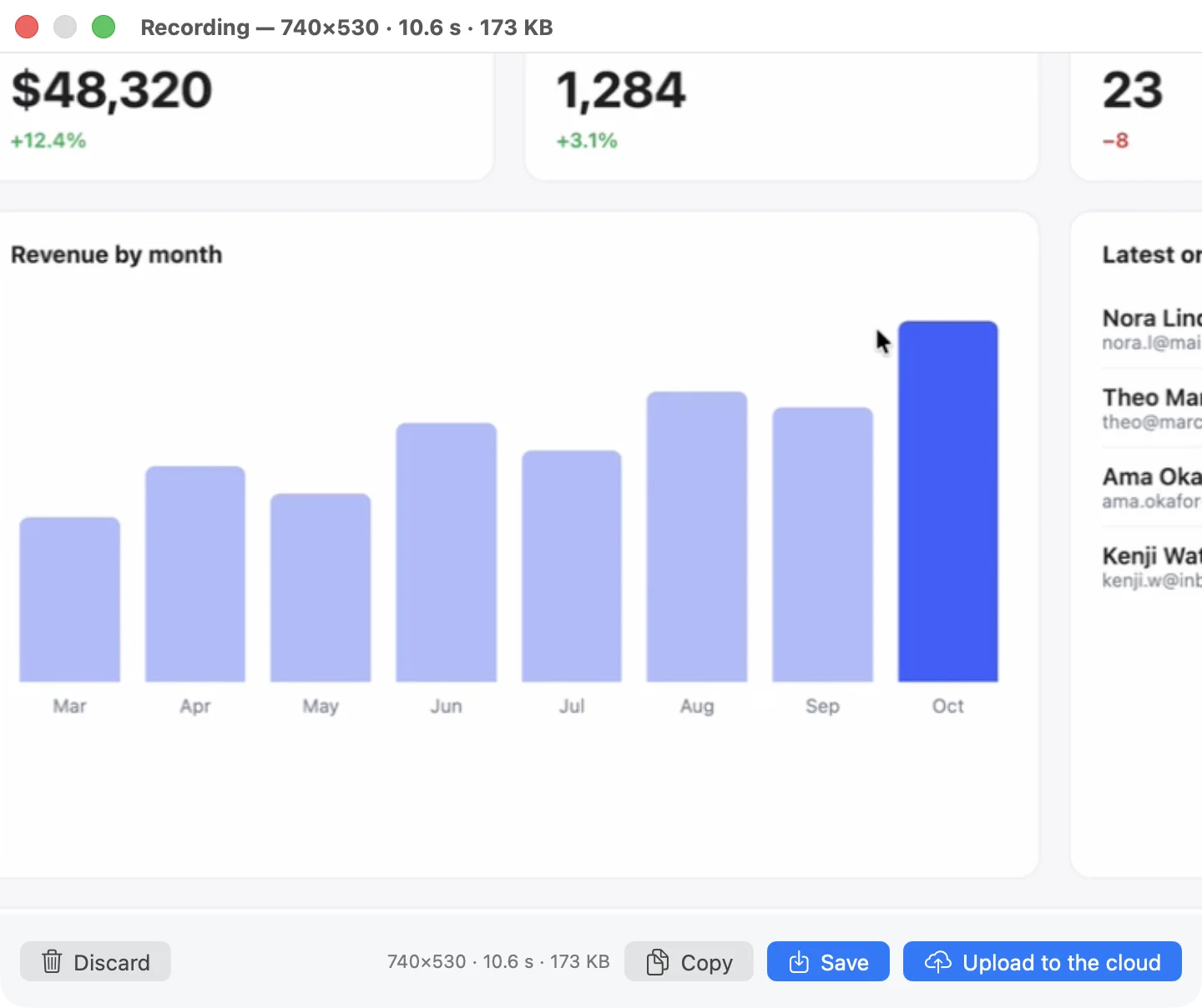
ShotDock, a screen recorder and screenshot app for the Mac, gives you several ways to stop, all visible while you record:
- Press the same shortcut you used to start: ⌃ ⌘ 0 (area), ⌃ ⌘ 9 (window) or ⌃ ⌘ 8 (full screen).
- Click Stop in the small bar next to the recorded area.
- Click the ShotDock icon in the menu bar, which shows pause, stop and the elapsed time while recording.
- Pause and resume with ⌃ ⌘ P instead of stopping and starting a new file; the final video comes out continuous.
Nothing is saved behind your back. When you stop, you see a preview with the duration and file size, and you choose: save the MP4 (↩), copy the file, or upload it and get a link on your clipboard. Recordings also come out much smaller than the built-in ones, because by default ShotDock records at one pixel per point instead of full Retina resolution.
Unlike ⇧ ⌘ 5, ShotDock can record the sound playing on your Mac, mixed with your microphone if you like, and put your webcam in a corner. It's $12 once, with a 14-day trial. For a side-by-side with a subscription recorder, see the Loom comparison.
Quick reference
| ⇧⌘5 / QuickTime | ShotDock | |
|---|---|---|
| Stop with the keyboard | ⌃⌘⎋ | The same shortcut that started it |
| Stop with the mouse | Menu bar stop button | Stop button by the area, or menu bar icon |
| Pause and resume | No | ⌃⌘P |
| Default location | Desktop (.mov) | You choose after stopping (.mp4) |
| Trim after stopping | Click the thumbnail | No; trim in QuickTime |
Frequently asked questions
How do I stop screen recording on a Mac?
Click the stop button in the menu bar, at the top right of the screen, or press Control-Command-Esc (⌃⌘⎋). You can also press Shift-Command-5 and click the stop button in the toolbar.
What is the shortcut to stop screen recording on a Mac?
Control-Command-Esc (⌃⌘⎋) stops a recording started with Shift-Command-5 or QuickTime.
Where did my screen recording go?
Recordings started with Shift-Command-5 are saved to the Desktop by default as .mov files named Screen Recording with the date and time, or to the folder chosen in Shift-Command-5 → Options → Save to. Recordings started from QuickTime open in a QuickTime window and must be saved with File → Save.
My Mac screen recording won't stop. What do I do?
Try Control-Command-Esc, then Shift-Command-5 and the stop button. If the menu bar is hidden by a full-screen app, move the pointer to the top edge to reveal it. As a last resort, quit the recording process in Activity Monitor; the recording made up to that point may be lost.
Why did my screen recording stop by itself?
The usual causes are a full disk, the Mac going to sleep, or switching displays during the recording. Free up space and keep the Mac awake for long recordings.
Try ShotDock free for 14 days
Every feature unlocked, no account. If you keep it, it's $12 once — no subscription.