The short list
| ⇧⌘5 / QuickTime | OBS Studio | Zoom (local) | Loom Starter | ShotDock | |
|---|---|---|---|---|---|
| Price | Free | Free, open source | Free | Free, with limits | $12 once (14-day trial) |
| Microphone | Yes | Yes | Yes | Yes | Yes |
| Sound playing on the Mac | No | Yes (macOS 13+) | With “Share sound” on | Yes, in the desktop app | Yes, or mixed with mic |
| Webcam overlay | QuickTime trick | Yes, you build it | Your video tile | Yes | Circle or rectangle |
| Time limit | None | None | Free meetings are capped (40 min) | Yes, per video | None |
| Setup | None | Scenes and sources | Start a meeting | Account | None, no account |
| Share link | No | No | Cloud plans only | Yes | Yes |
1. The built-in recorder: Shift-Command-5 and QuickTime
Best for: quick recordings where only your voice matters.
Every Mac has it. Press ⇧ ⌘ 5 and choose Record Entire Screen, Record Selected Window or Record Selected Portion; set a microphone under Options; click Record. Stop with the button in the menu bar or ⌃ ⌘ ⎋. QuickTime's File → New Screen Recording opens the same toolbar.
What it can't do:
- Record the sound playing on the Mac — only microphones are offered as an audio source.
- Show your webcam, except with the workaround of a floating QuickTime camera window.
- Pause and resume.
- Produce small files: it records at full Retina resolution, so a few minutes can weigh hundreds of megabytes.
Step-by-step instructions are in how to screen record on a Mac with audio.
2. OBS Studio
Best for: people who want full control and don't mind setting it up.
OBS is free, open source and actively maintained, and it's what most streamers use. On macOS 13 and later its macOS Screen Capture source can capture a display, a window or an app together with its audio, so system sound works without a virtual driver. You can layer a webcam, images and text, and record or stream.
What to expect:
- A learning curve: before recording you create a scene, add sources, and pick an output format and bitrate.
- The webcam overlay is a source you position and size yourself.
- No share link; you get a file and upload it wherever you like.
If you'll record often and like tweaking, OBS is hard to beat for the price.
3. Zoom's local recording
Best for: recording meetings, or a quick talking-head with screen share.
Free Zoom accounts can record to the computer from the desktop app. Start a meeting on your own, share your screen, and click Record → Record on this Computer. You get an MP4 with your camera and the shared screen, plus meeting audio. It's a clever free option for a screen-plus-face video, but the layout is Zoom's, meetings on a free account are capped at 40 minutes, and sound from other apps is recorded only if you tick Share sound when you start sharing your screen. See how to record a Zoom meeting on a Mac.
4. Loom's free Starter plan
Best for: short async video messages with a link.
Loom records your screen, camera and audio and gives you a link right away. The free Starter plan caps how long each recording can be and how many videos you can keep; anything beyond that needs a paid plan, priced per user per month. Check Loom's pricing page for the current limits. If you like the workflow but not the subscription, see our Loom alternative comparison.
5. Two more free options worth knowing
- Photo Booth records your webcam only — no screen. Fine for a quick video of yourself; see how to record a video of yourself on a Mac.
- Kap is a free, open-source recorder known for GIF export. Its last release was in 2022, so expect rough edges on current macOS.
Watch out for “free” downloads that add a watermark, cap recordings at a few minutes, or ask for payment at export time. The tools above don't do that, apart from the stated limits of Loom's and Zoom's free plans.
Free with a workaround: adding Mac audio to Shift-Command-5
If you want to stay with the built-in recorder, a free virtual audio driver such as BlackHole can route the Mac's sound into it: create a Multi-Output Device in Audio MIDI Setup, set it as your output, and pick BlackHole as the microphone in ⇧ ⌘ 5 → Options. It works, but the volume keys stop working while it's selected, recording your voice too needs a second, aggregate device, and you have to switch everything back afterwards.
When a paid recorder is worth it
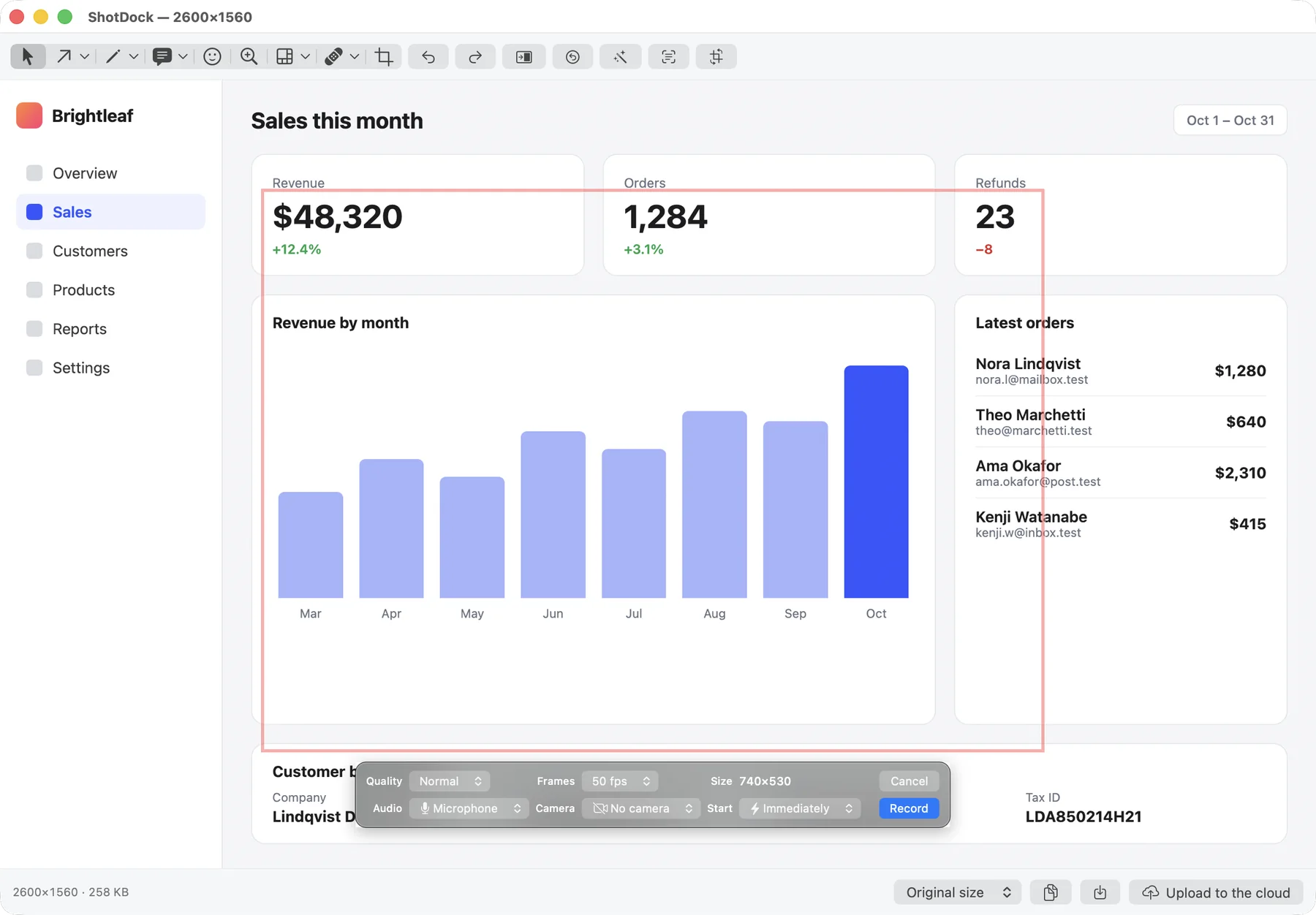
To be clear: ShotDock is our app and it isn't free. It costs $12 once — no subscription — after a 14-day trial with every feature and no account. It's worth it if you keep running into the gaps above and don't want to configure OBS:
- System audio, microphone, or both mixed, from a dropdown.
- Webcam as a circle or rectangle you can drag while recording.
- Pause and resume (⌃ ⌘ P) with no gap in the video.
- Small MP4 files: it records at one pixel per point by default, and only stores frames that change.
- A share link on your clipboard when you finish, on ShotDock's cloud or your own S3 bucket.
- It's also a full screenshot tool: an editor with blur and content-aware erase, scrolling capture and text recognition.
If the built-in recorder or OBS already does what you need, keep using them. If you're comparing paid options, see how ShotDock compares with CleanShot X.
Frequently asked questions
Does Mac have a free screen recorder?
Yes. Press Shift-Command-5 to record the whole screen, a window or a selected area, or use QuickTime Player → File → New Screen Recording, which opens the same tool. It records your microphone but not the sound playing on the Mac.
What is the best free screen recorder for Mac with internal audio?
OBS Studio. On macOS 13 and later its macOS Screen Capture source can record an app's or the whole system's audio without extra drivers. It takes some setup: you create a scene, add sources and choose output settings before recording.
Is there a free screen recorder for Mac without a watermark?
The built-in recorder and OBS Studio add no watermark and have no time limit; Zoom's local recording adds no watermark, but free meetings are capped at 40 minutes. Many 'free' downloads add a watermark or cap recording length until you pay, so check before you record something important.
Is QuickTime screen recording free?
Yes. QuickTime Player comes with every Mac and its screen recording is free with no limits beyond disk space. Since macOS Mojave it opens the same toolbar as Shift-Command-5.
Is Loom free on Mac?
Loom has a free Starter plan with limits on recording length and on how many videos you can keep; longer recordings and more videos require a paid plan. Check Loom's pricing page for the current limits.
Try ShotDock free for 14 days
Every feature unlocked, no account. If you keep it, it's $12 once — no subscription.