Which tool for which video
| You want to record | Free, built in | With ShotDock |
|---|---|---|
| A quick clip of yourself | Photo Booth | Use Photo Booth |
| Yourself, choosing mic and quality | QuickTime → New Movie Recording | Use QuickTime |
| Your screen with your face in a corner | QuickTime + ⇧⌘5 trick | Camera bubble, circle or rectangle |
| Screen, face and the Mac's own sound | Not possible | Yes |
If all you need is you talking to the camera, you don't need any app beyond what's on the Mac. The rest of this guide covers both, and is straight about where ShotDock fits.
Record yourself with Photo Booth
Photo Booth is the fastest way to record a webcam video on a Mac.
- Open Photo Booth from Applications or with Spotlight (⌘ Space).
- In the bottom-left corner there are three small buttons; click the one whose tooltip says Record a movie clip.
- Click the red button to start recording, and click it again to stop.
- The clip appears in the strip at the bottom. Drag it to the Desktop or a Finder folder to get a
.movfile you can send.
Photo Booth mirrors the preview, like a mirror, and keeps everything in its own library inside your Pictures folder. It doesn't let you choose the quality or an external microphone, so for anything you'll publish, use QuickTime.
Record yourself with QuickTime Player
- Open QuickTime Player and choose File → New Movie Recording. A window with your camera appears.
- Click the small arrow next to the record button. Choose the Camera (built-in, an external webcam or your iPhone), the Microphone and the Quality: High is fine for most uses; Maximum keeps more detail and makes much bigger files.
- Click the red button to start, and again to stop.
- Choose File → Save (⌘ S), name the video and pick a folder. Use Edit → Trim first if you want to cut the start and end.
Use your iPhone as the camera. With Continuity Camera, an iPhone near your Mac on the same Apple Account shows up in the Camera list. Its camera is far better than a laptop's, especially in low light.
Record your screen and your face together
For tutorials, product demos and async updates, people want to see the screen and the person explaining it. macOS has no camera option in the screen recording toolbar, so you have two routes.
The free trick: QuickTime floating on top
- In QuickTime, choose File → New Movie Recording, but don't press record.
- Shrink the window and drag it to a corner.
- Choose View → Float on Top so it stays above other windows.
- Press ⇧ ⌘ 5, choose Record Entire Screen or Record Selected Portion (including the camera window), pick your microphone under Options and click Record.
It works and it's free. The camera appears as a rectangle with a window frame, and the built-in recorder can't capture the sound playing on your Mac — only the microphone. Our guide to screen recording on a Mac with audio covers that limit in detail.
With ShotDock: a camera bubble that's part of the recorder
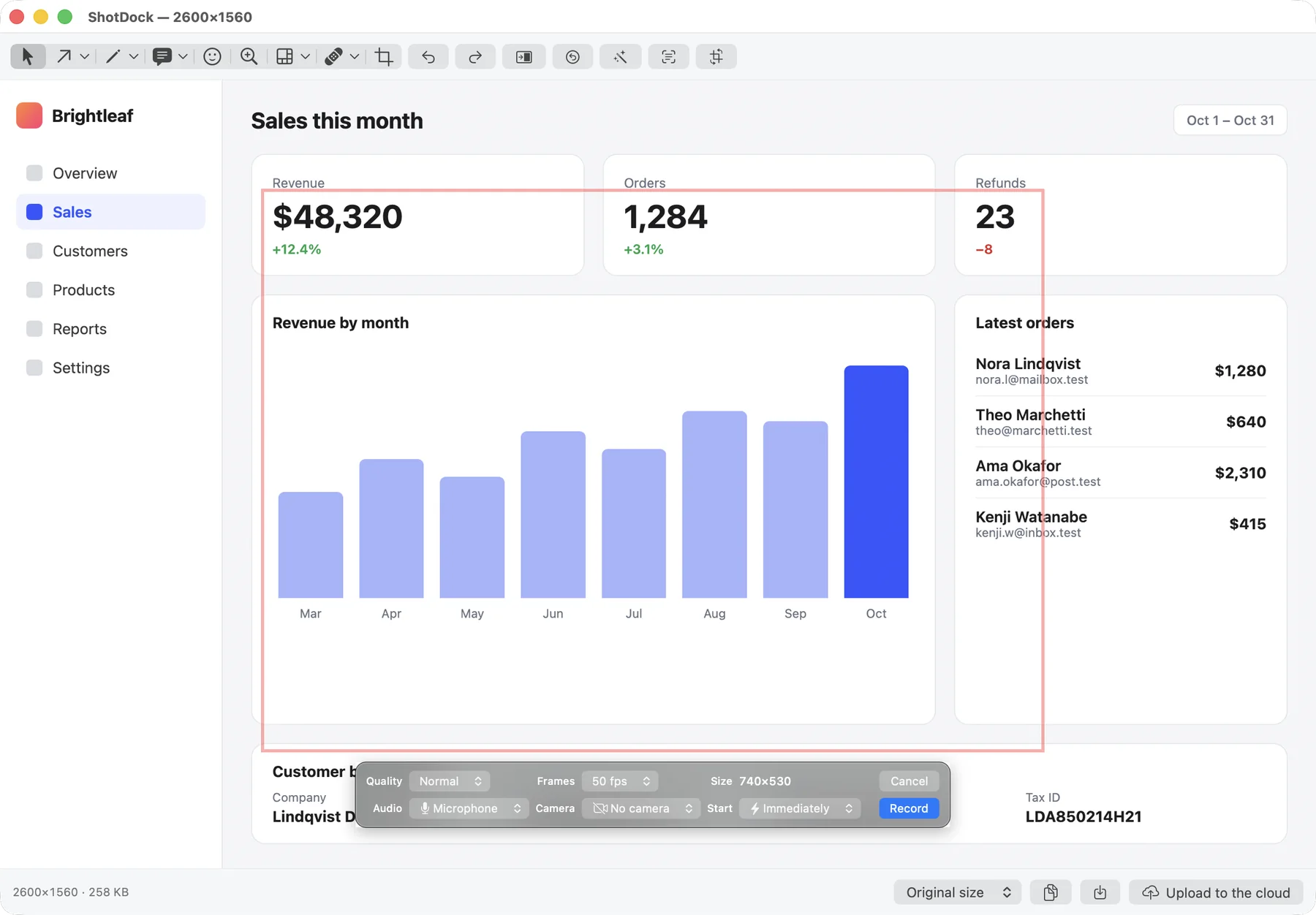
ShotDock is a screen recorder and screenshot app for the Mac with the camera built into the recording bar:
- Press ⌃ ⌘ 0 and drag over the area to record, or ⌃ ⌘ 8 for the whole screen.
- In the bar that appears, set the camera to Circle or Rectangle. Your face shows up in the bottom-right corner of the area.
- Drag the bubble wherever it covers the least — even mid-recording — and double-click it to make it bigger.
- Choose the audio: Microphone, System (the sound playing on your Mac) or System + microphone.
- Click Record. Stop with the same shortcut, the Stop button or the menu bar icon. You get an MP4 to save, copy or share by link.
Two honest limits. ShotDock doesn't record the camera on its own — for a webcam-only video, Photo Booth and QuickTime are the right tools. And the bubble appears when you record an area or the full screen, not with window recording, which captures the window by itself.
It costs $12 once, with a 14-day trial that has every feature and no account. Loom does a similar camera-plus-screen recording with a subscription; we compare the two in Loom alternative for Mac.
Tips for a better webcam video
- Light from the front. A window behind you turns your face into a silhouette. Face it instead.
- Camera at eye level. Raise the laptop on a few books so the camera isn't looking up at you.
- Use a headset or external mic if you have one; the built-in mics pick up the room and the keyboard.
- Check the frame before you start. In ShotDock the bubble is on screen before recording begins, so you can move it off anything important.
- Keep it short. For an async update, two minutes is plenty. Pause and resume instead of starting over: in ShotDock, ⌃ ⌘ P pauses and the final video has no gap.
Need to know how to end a recording that won't stop, or where the file went? See how to stop screen recording on a Mac. If you're comparing free tools first, start with free screen recorders for Mac.
Frequently asked questions
How do I record myself on my MacBook?
Open QuickTime Player and choose File → New Movie Recording, or open Photo Booth and switch to Record a movie clip. Both use the built-in FaceTime camera and microphone and are free. QuickTime lets you pick the microphone and quality; Photo Booth is quicker but keeps clips in its own library.
How do I record my screen and my face at the same time on a Mac?
With the built-in tools, open a QuickTime movie recording, shrink the window, set it to View → Float on Top and then record the screen with Shift-Command-5. An app such as ShotDock, OBS or Loom places a camera bubble over the recording for you.
Where does QuickTime save webcam recordings?
QuickTime doesn't save the movie until you choose File → Save or close the window; it then asks for a name and a folder. Photo Booth keeps clips in its own library, inside the Pictures folder; drag a clip out of Photo Booth to get a file.
Can I use my iPhone as a webcam to record on a Mac?
Yes, with Continuity Camera. With the iPhone nearby, signed in to the same Apple Account, it shows up as a camera in QuickTime, Photo Booth and other apps. Pick it the same way you'd pick any camera.
Why is my Mac camera recording dark or grainy?
Built-in cameras need light in front of you. Face a window or a lamp rather than sitting with a window behind you. Recording at Maximum quality in QuickTime helps detail, not light.
Try ShotDock free for 14 days
Every feature unlocked, no account. If you keep it, it's $12 once — no subscription.