Option 1: Zoom's own recorder (try this first)
Zoom has two kinds of recording: local, saved to your Mac, which is available on free and paid accounts in the desktop app, and cloud, saved to Zoom's servers, which requires a paid plan. For most people, local is all you need.
- Open the meeting in the Zoom desktop app. Local recording doesn't work from the browser or from an iPhone or iPad.
- Click Record in the meeting controls. If the window is narrow, it's under More.
- Choose Record on this Computer. A recording indicator appears in the top-left corner, and participants are told the meeting is being recorded.
- Pause or stop from the same indicator. Keyboard: ⇧ ⌘ R starts and stops a local recording; ⇧ ⌘ C does the same for a cloud recording.
- When the meeting ends, Zoom converts the recording. Leave the Mac on until it finishes; long meetings take a while.
Where the recording is saved
In Documents → Zoom (~/Documents/Zoom), in a folder named with the date, time and meeting title. Inside you'll find the video as an MP4 and the audio as a separate file. To change the folder, open Zoom's Settings → Recording. Avoid pointing it at a synced cloud folder or a network drive, which can interrupt the conversion.
If the Record button is greyed out or missing
- You're not the host. Ask the host to give you permission; they can do it from the Participants panel. Or ask them to record and send you the file.
- Your organisation disabled it. Company accounts can turn off local recording for everyone. That's a policy setting, not a bug.
- You're in the browser. Join from the desktop app instead.
Why ⇧ ⌘ 5 isn't a good Zoom recorder
The Mac's built-in screen recorder can capture the Zoom window, but its only audio source is a microphone. Your own voice is recorded; the other participants come through your speakers into the mic, if at all — and not at all if you're wearing headphones. The result is usually unusable for meetings. Our guide on screen recording on a Mac with audio explains the workarounds, such as a virtual audio driver.
Option 2: record with a screen recorder that captures Mac audio
When Zoom's recorder isn't an option, or you want the same tool for Zoom, Google Meet, Teams and everything else, you need a screen recorder that captures system audio — the sound coming out of the Mac — together with your microphone.
Tell people first. Zoom announces its own recordings. A screen recorder doesn't, so the other participants won't know unless you say so. In many places you need their consent.
With ShotDock
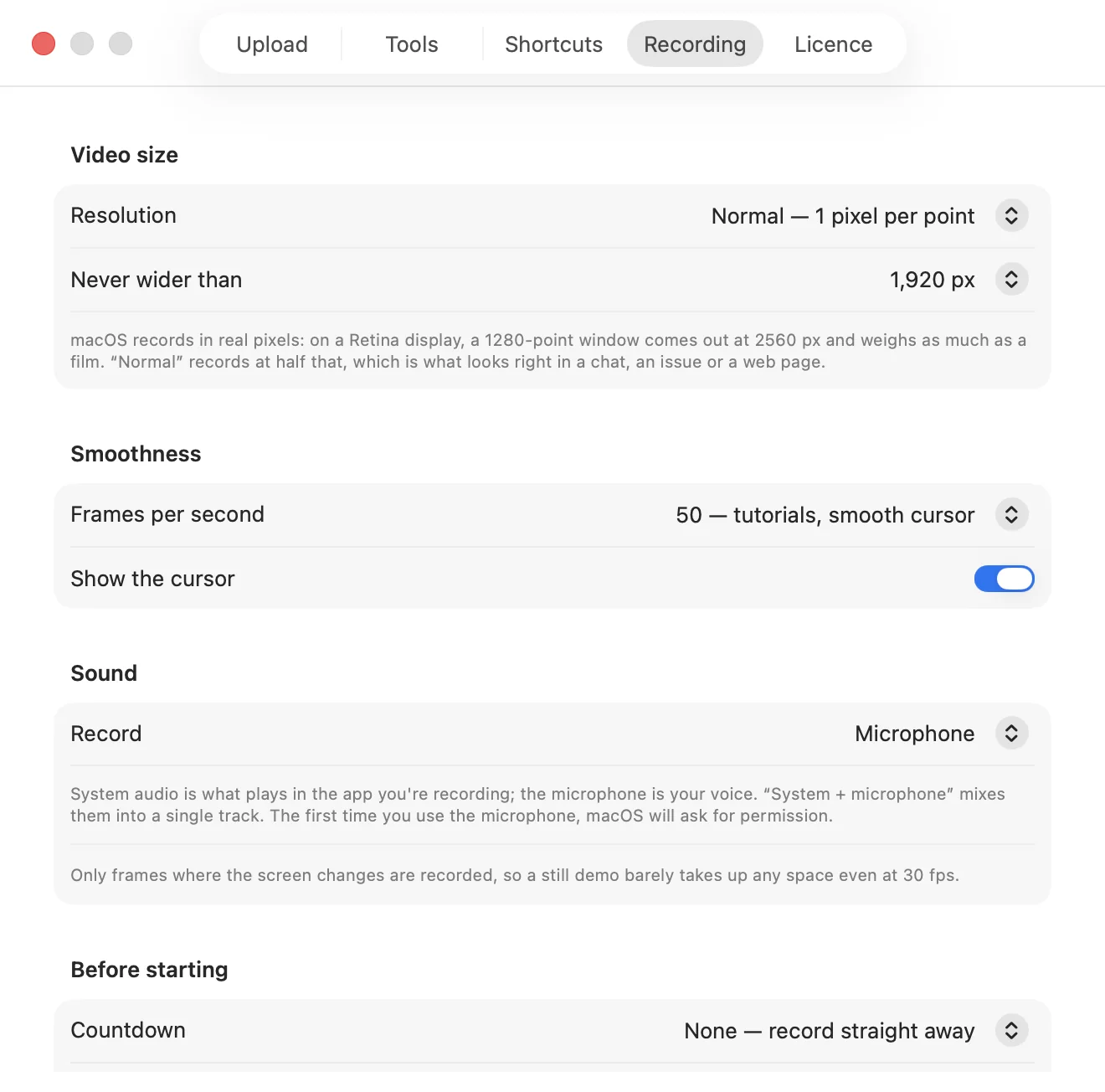
ShotDock is a screen recorder and screenshot app for the Mac that records system audio directly, without a virtual driver:
- Press ⌃ ⌘ 9 and click the Zoom meeting window. (Use ⌃ ⌘ 0 for an area or ⌃ ⌘ 8 for the whole screen if you'll switch to a shared document.)
- In the bar that appears, set audio to System + microphone. The participants and your voice are mixed into one track.
- Pick the quality and frame rate. For a meeting, Normal quality at 30 fps keeps the file small.
- Click Record. Pause with ⌃ ⌘ P during breaks; the final video has no gap.
- Stop with the same shortcut or the menu bar icon, then save the MP4, copy it or share it by link.
Window recording captures the Zoom window even if other windows cover it, and the sound comes from the app you're recording, so a notification from another app doesn't end up in the file. Because the audio is captured digitally, it works with headphones on.
Honest limits: ShotDock records what you see, so you get the Zoom layout you had on screen (speaker or gallery view), not Zoom's separate per-participant audio files or transcript. It costs $12 once, with a 14-day trial that has every feature.
Free alternatives
OBS Studio is free and can capture a window plus the app's audio on current macOS, at the cost of a more involved setup. A virtual audio driver such as BlackHole plus ⇧ ⌘ 5 also works, but you must switch audio outputs before and after each meeting. We compare these in free screen recorders for Mac.
Which method should you use?
| Zoom local recording | ⇧⌘5 | ShotDock | |
|---|---|---|---|
| Other participants' audio | Yes, clean | Only through your mic | Yes, clean |
| Works without host permission | No | Yes | Yes |
| Notifies participants | Yes | No | No — tell them |
| Also works for Meet, Teams, webinars | No | Yes, without their audio | Yes |
| Output | MP4 + audio file | .mov | MP4 (H.264), share link |
| Price | Free (local) | Free | $12 once |
If you're the host, or the host agrees, use Zoom's recorder. If not, or if you record calls on several platforms, a recorder with system audio is the practical choice. For async video messages rather than meetings, see our Loom alternative comparison.
Frequently asked questions
Can I record a Zoom meeting on a Mac if I'm not the host?
Only if the host allows it. In the Participants panel the host can give you permission to record; otherwise Zoom's Record button is unavailable to you. You can also ask the host to record and share the file.
Does Zoom record audio on a Mac?
Yes. Zoom's own recording captures everyone's audio and video, plus shared screens, without any extra setup. The built-in macOS screen recorder (Shift-Command-5) is different: it only records a microphone, so the other participants' voices aren't captured cleanly.
Where do Zoom recordings go on a Mac?
Local recordings go to the Zoom folder inside Documents (~/Documents/Zoom), in a subfolder named with the date and meeting title. You can change the folder in Zoom's Settings → Recording.
Is it legal to record a Zoom meeting?
It depends on where you and the other participants are. Some places require everyone's consent. Zoom's recorder announces the recording; a screen recorder doesn't, so tell people before you start.
Can I record a Zoom meeting for free?
Yes. Recording to your computer is included in free Zoom accounts on the desktop app, though meetings on a free account are limited to 40 minutes. Cloud recording requires a paid plan.
Try ShotDock free for 14 days
Every feature unlocked, no account. If you keep it, it's $12 once — no subscription.